
Why Android only keeps one copied item
The Android system clipboard stores a single item. When you copy something new, it replaces what was there. Android 13 and later can also clear the clipboard automatically after a while. So "copy multiple things" really means two steps: collect each item somewhere it will stay, then paste them one by one or as one combined block.
Two ways to collect several items
| Method | How items get in | How long they stay | Paste all at once? |
|---|---|---|---|
| Keyboard clipboard tray (Gboard, Samsung Keyboard) | Each copy after you turn the tray on | Gboard: about 1 hour unless pinned | No, one item per tap |
| Clipboard app | You save each item on purpose | Until you delete it | Yes, with Select and Merge |
Method 1: Use your keyboard's clipboard tray
If you only need a few items for the next few minutes, your keyboard may already be enough.
- Open any text field and tap the Clipboard icon in the keyboard toolbar. Turn the clipboard on if it is off. It only collects copies made after that.
- Go to your sources and copy each item as usual.
- Go back to where you are writing, open the keyboard's clipboard, and tap each item to paste it.
Two limits: Gboard clears unpinned items after about an hour, and you still paste one item at a time. If the icon is missing, see Gboard clipboard not working. On Samsung phones, see where the clipboard is on Samsung.
Method 2: Collect into Clipboard, then paste in one go
Clipboard is a clipboard manager for Android. It keeps the items you save in a list until you delete them, so you can collect now and paste later, even tomorrow.
Step 1: Save each item as you go
Pick whichever way is quickest in the app you are reading:
- Text selection menu: select the text, then choose Clipboard in the menu that appears. On some phones it is under the three-dot overflow. Clipboard saves the selected text as a new clip.
- Share: in apps with a Share button, share text or images to Clipboard. You can share several images at once.
- Quick Add tile: copy the text, then tap Clipboard's Quick Add tile in Quick Settings. It opens a new text clip where you paste and save.
Items saved this way go into your current folder. If you are gathering material for one task, create a folder for it first so the items stay together.
How Clipboard actually works: copying text in another app does not automatically add it to Clipboard's history. Only items you create or save inside the Clipboard app go into your history and Pro sync. That keeps the list to what you chose to collect.
Step 2: Paste them one by one
Put the cursor where the first item goes. Open Quick Settings and tap Clipboard's Recent Clips tile, pick an item to copy it, then paste. Repeat for the next item. If the tile is not in your panel, open the Quick Settings editor and add it. You can also open the Clipboard app and copy each item from the list.
Or combine them into one block
- Open Clipboard and tap Select.
- Tap the text clips you want to combine.
- Tap Merge. Clipboard joins them into one clip, newest first, with a line break between each.
- Copy the merged clip and paste the whole block where you need it.
Merge replaces the selected clips with the single combined clip, and it only works with text, not images. If you want to keep the originals, save copies first or merge only clips you no longer need separately.
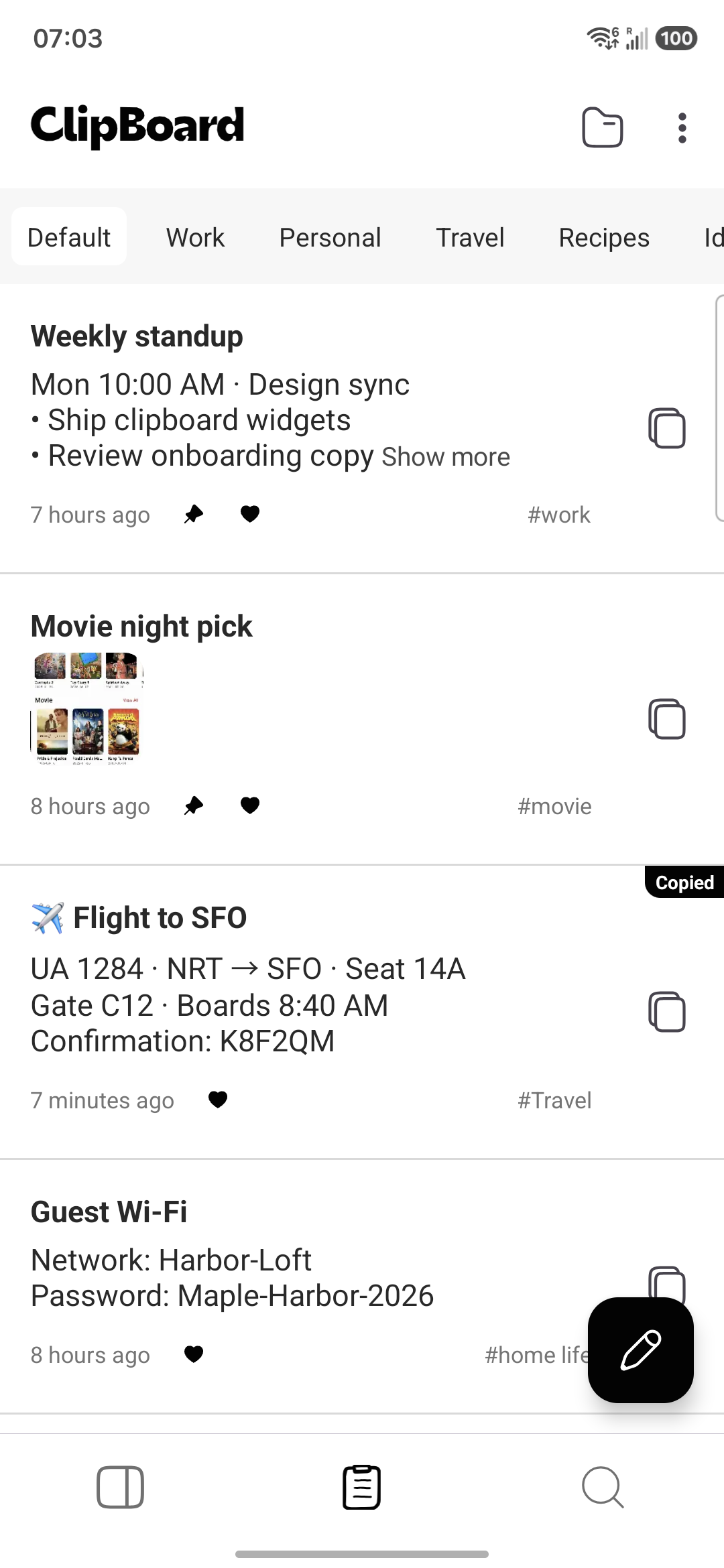
Example: filling in a form from three sources
Say you need a customer's address from an email, an order number from a web page, and a tracking link from a chat. Select and save each one to Clipboard while you are in that app. Then open the form and paste each field with the Recent Clips tile. If you are writing a single message instead, select the three clips and Merge them so you paste once.
Tips
- Need to find something you copied earlier rather than collect it on purpose? See how to see paste history on Android.
- Want a lasting library of replies you reuse, rather than a one-time collection? See saved replies and text snippets on Android.
- Text inside an image or on screen you cannot select? See how to copy text on screen or copy text from an image.
- Do not collect passwords or one-time codes in any clipboard list. Use a password manager, and clear the clipboard after copying something sensitive.
Frequently asked questions
Can Android copy more than one thing at a time?
Not by itself. The Android system clipboard holds one item, and each new copy replaces the last. To gather several items, use a keyboard clipboard tray such as Gboard or Samsung Keyboard, or save each item to a clipboard manager as you go and paste them later.
Does Clipboard save everything I copy in other apps automatically?
No. Copying text in another app does not automatically add it to Clipboard's history. You save each item on purpose: select text and choose Clipboard from the text selection menu, share text to Clipboard, or use the Quick Add tile and paste it in. Only items you create or save in the Clipboard app go into your history and Pro sync.
How do I paste several copied items into one place at once?
Most apps paste only one item at a time. In Clipboard, tap Select, choose the text clips, and tap Merge. Clipboard combines them into one clip, newest first, with a line break between each, so you can copy and paste the combined text in a single step. Merge replaces the selected clips with the combined clip, and it does not work with image clips.
How long does Gboard keep copied items?
Gboard clears unpinned items from its clipboard tray after about one hour. Pin anything you need longer, or save it somewhere that does not expire.
How is this different from paste history?
Paste history is about finding something you copied earlier. Copying multiple things is a planned workflow: you gather several pieces on purpose, such as an address, an order number, and a link, and then paste them in a row or as one block.
Related articles
Stop copying one thing at a time
Collect the text you need in Clipboard, then paste it in a row or as one block.