
Choose the quickest method that works
Text can look identical while being stored in different ways. A paragraph on a web page may be real text. The same paragraph in a photo is a set of pixels. A button label may be readable but offer no selection menu. The method depends on which one you have.
| Method | Try it for | What to check |
|---|---|---|
| System select and copy | Text in messages, pages, and documents | The app must allow selection |
| Screenshot and Google Lens | Words in pictures or a one-off capture | Review recognition; controls vary by version |
| Universal Copy style tools | App text without a normal selection menu | Permissions, supported apps, and whether OCR is needed |
| Clipboard screen OCR | Visible text you want to copy and keep | Approve screen capture, edit the result, then save |
If a long press works, use it. OCR adds a chance of spelling mistakes. It is useful when selection fails, not a reason to replace a working Copy button.
Method 1: Use Android selection and Copy
- Touch and hold a word in the paragraph you need.
- If selection handles appear, drag them to include the right words.
- Tap Copy. Check the overflow menu if the action is hidden.
- Open the destination, touch and hold its text field, and tap Paste.
Some apps select a whole message rather than individual words. Copy the message and remove the extra text in the destination. In a document viewer, look for a text selection mode before taking a screenshot. These approaches preserve the original characters.
If you want the passage again next week, also create or save a clip inside Clipboard. The Android system clipboard is a temporary place to hold what you are pasting. It is not the same as a saved collection. Our clipboard history guide covers how system clipboard history differs from a saved clip collection.
Method 2: Read a screenshot with Google Lens
For an image or an unselectable page, a screenshot is a useful fallback. Google documents text copying through Lens in its Google Photos help guide. The exact controls depend on the app version and your phone.
- Show the words clearly and take a screenshot using your phone's screenshot controls.
- Open the screenshot in Google Photos and open Lens.
- Select the recognized words you need, then use the copy action.
- Paste into a text field and check names, numbers, and punctuation against the image.
People sometimes ask for “Live Text on Android.” Live Text is Apple's name for its text recognition feature. On Android, look for Lens or your phone's own image text selection tools. Do not assume a particular gallery or recent-apps selection feature is present on every device.
This route is convenient for an existing photo. For a short line, it may take more taps than typing. For a long address or reference number, it can still be worth doing. Keep the screenshot until you have checked the pasted result, then delete it if you no longer need it.
Method 3: Consider a Universal Copy style app
Tools in this category try to expose text where the normal selection menu is missing. Depending on the tool and mode, they may read text exposed by the app's interface or use OCR on an image of the screen. Those are different approaches, with different limits.
Before installing one, check its current permission explanation. Some ask for accessibility access to read interface content. OCR modes may need screen capture permission instead or as well. Give access only if you understand the task it performs. There is no need to enable every permission offered just to copy one sentence.
An interface-reading tool can miss text drawn inside an image. OCR can read an image but misread characters. Neither method guarantees access to protected screens. If a banking or media app blocks capture, use a supported export or share option rather than expecting a copy utility to bypass it.
Method 4: Use Clipboard's Recognize screen flow
Clipboard's Android app includes screen OCR through a Quick Settings tile labeled Recognize screen and a floating shortcut. The screenshots below come from a recorded app flow. Check your installed version for these controls; availability and placement can change between releases.
The feature uses on-device ML Kit. Recognition works offline once the required models are available. Screen OCR does not require Pro. Saving a result locally and syncing that saved result to another device are separate actions; cross-device sync requires Pro.
1. Put the text on screen
Open the page or app with the text you need. Scroll until the full passage is visible. Increase the text size if the app allows it, and dismiss menus that cover the words. For a long passage, plan on several captures instead of squeezing everything into tiny type.
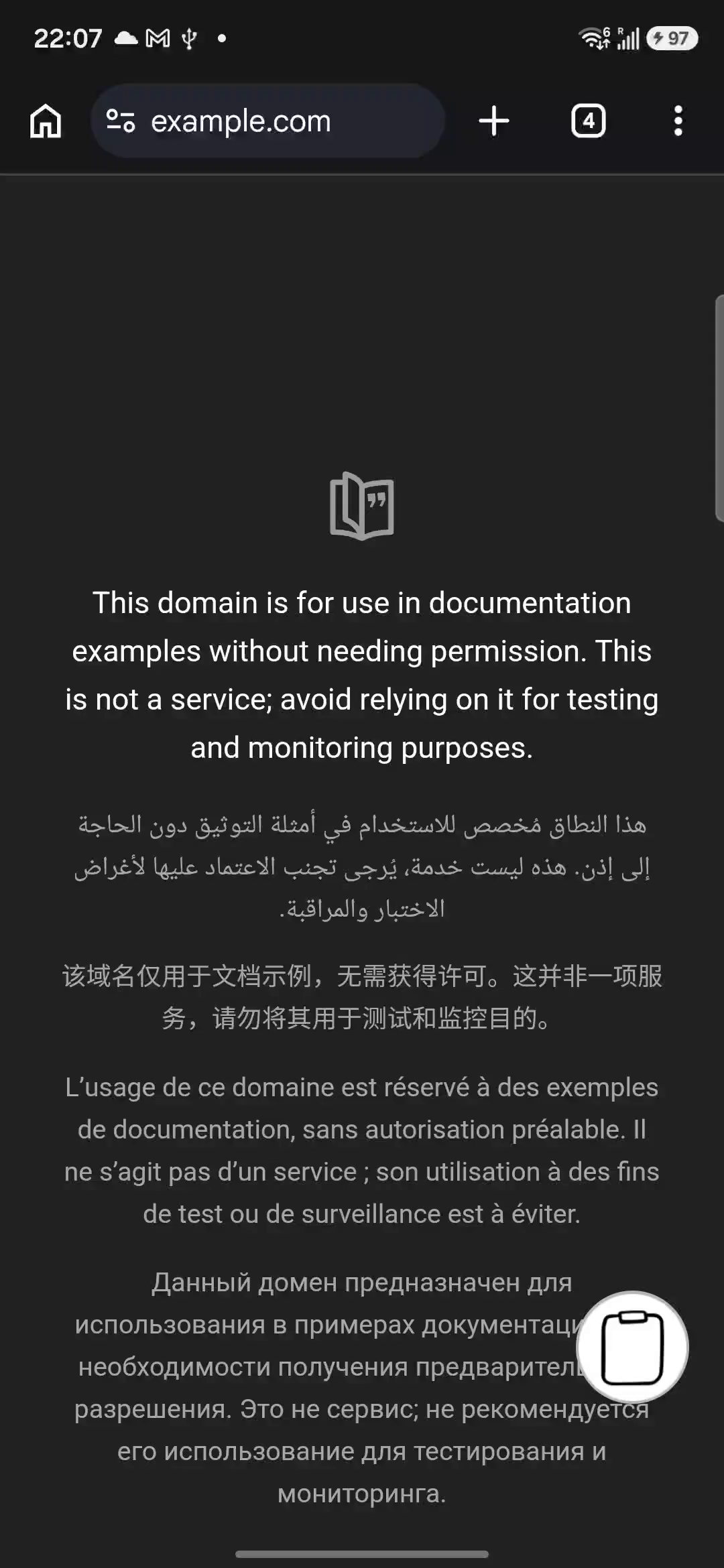
2. Start Recognize screen
Open Android Quick Settings and tap Recognize screen. If the tile is not in your active tiles, open the tile editor and look for it among the available tiles. Move it into the active area if it is listed. Alternatively, use Clipboard's floating shortcut when you have enabled it.
If neither entry point appears in your installed version, do not keep granting unrelated permissions. Use the screenshot method above and check the app's available features. The floating shortcut shown here is not a screenshot of the Quick Settings tile editor.
3. Review Android's screen sharing prompt
Android asks “Share your screen with Clipboard?”. In the recorded flow, the dialog offers Share screen. Read the prompt and approve only when the intended content is visible. This is Android granting screen capture access so Clipboard can recognize the visible words.
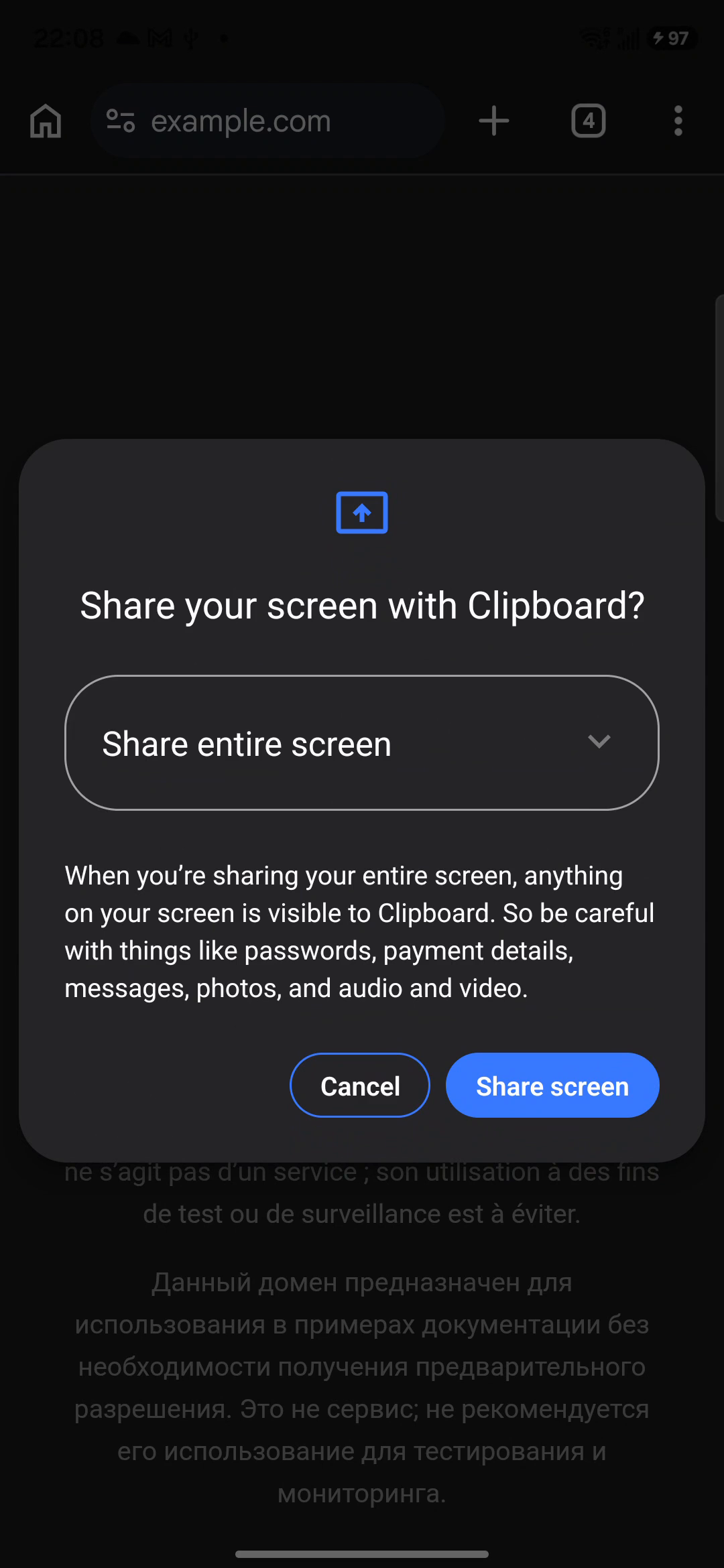
4. Edit, then choose Copy and save or Save only
The Recognize screen preview shows an editable recognized-text field. Read it before accepting it. Remove browser controls, unrelated labels, and broken fragments. The example below includes address-bar text and recognition errors; it is a useful reminder that OCR is a draft.
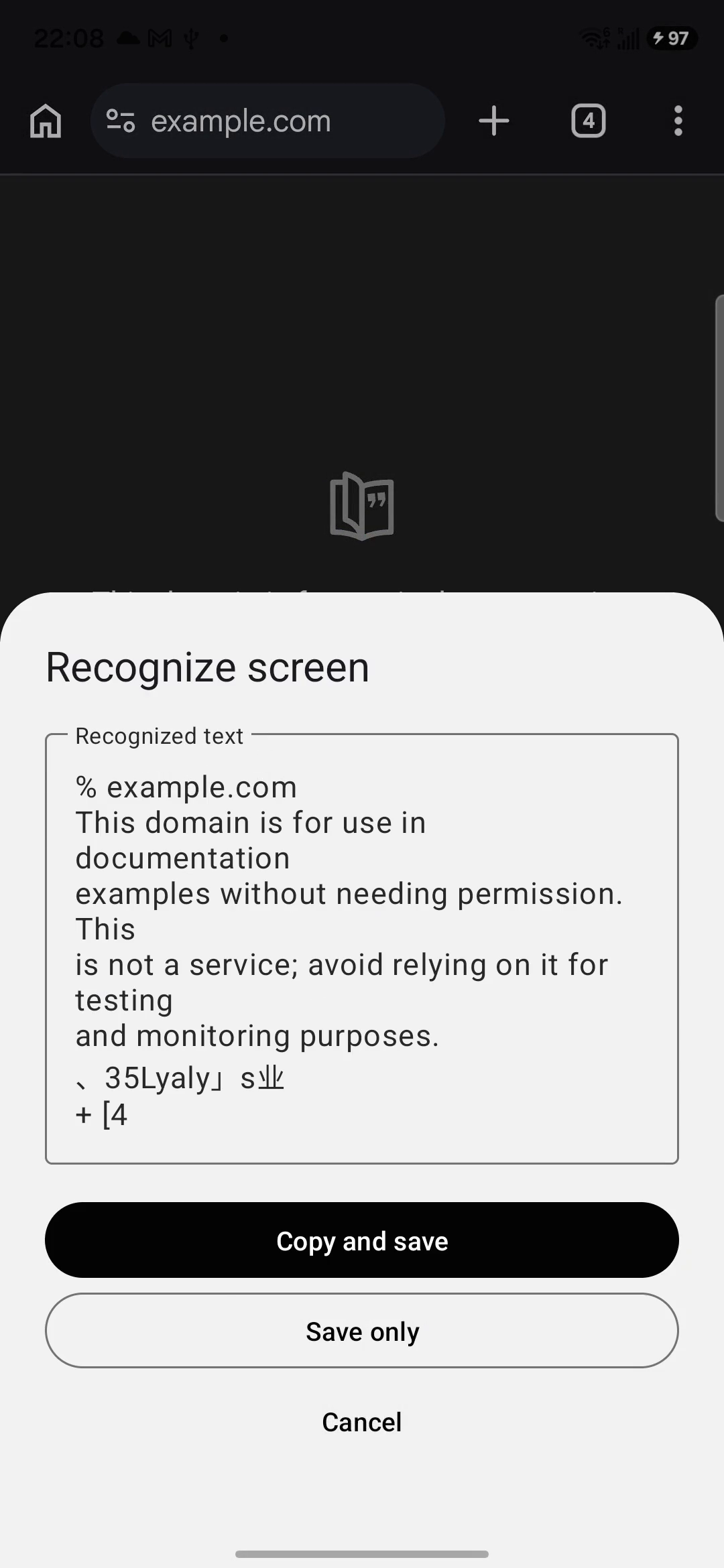
- Copy and save: put the reviewed text on the system clipboard and save a clip in Clipboard.
- Save only: keep the clip for later without replacing what you are ready to paste.
- Cancel: leave without saving the result if it is not useful.
After Copy and save, return to your destination and paste. If the text needs to reach your Mac, first confirm that it is saved in Clipboard, then use Pro cross-device sync. Copying in another app alone never triggers Clipboard sync. See copying from Android to Mac for the wider workflow.
Check the characters that matter
For a booking reference, compare every character. For an address, check the building number and postal code. OCR may confuse a zero with the letter O, drop punctuation in a link, or insert line breaks into a sentence. A plausible-looking result can still be wrong.
If recognition is poor, try a larger view with fewer distractions. Capture one section at a time. For columns, read the result in order rather than assuming it follows the page layout. If a capture is blank or blocked, return to the source app's supported copy, share, or export controls.
Saved OCR text is part of your local clip collection. If it matters, include it in a backup before changing phones. Our clipboard history recovery and backup guide explains the Pro folder export and the overwrite warning on import.
Frequently asked questions
How do I copy text on screen when a long press does nothing?
Try a screenshot and Google Lens, or a screen OCR tool such as Clipboard’s Recognize screen feature in the Android app. OCR reads the visible image rather than relying on selectable text. Review the result before copying or saving it.
Can Clipboard recognize screen text offline?
Clipboard uses on-device ML Kit for screen OCR. Recognition can work offline after the needed models are available. Initial model availability can require a connection. Cross-device sync is separate and needs a network connection and Pro.
Do I need Clipboard Pro for screen OCR?
The Android screen OCR feature does not require Pro. Pro is required for cross-device sync and backup/restore. Check your installed version for the Recognize screen tile or floating shortcut; the screenshots show a recorded Android app flow, not a promise about every release.
Why does the OCR result include the address bar or broken words?
Screen OCR can recognize browser controls, status text, and other UI alongside the words you wanted. Small type, mixed scripts, and line wrapping can also cause mistakes. Edit the recognized text before saving it.
Does copying the recognized text automatically sync it?
Copying alone is not the sync trigger. A clip must be created or saved inside Clipboard, and cross-device sync requires Pro. Copy and save both copies the result and saves a clip; Save only stores it without replacing the current system clipboard.
Can I use this to copy a whole scrolling page?
A screen capture covers what is visible, not an entire document hidden below it. Capture another section or open the source document and use its text selection or export feature. Check for missing lines and duplicated text when combining captures.
Related articles
Save a checked copy
Use Clipboard on Android to keep text you have reviewed. Pro adds cross-device sync and folder backup/restore.