
Text expander vs a saved snippet library
A text expander watches you type and replaces a short abbreviation with a longer phrase. A saved snippet library works the other way: you keep the full text, find it when you need it, copy it, and paste it yourself. That is enough for most canned replies, and it does not require a new keyboard or memorizing shortcuts.
| Text expander | Saved snippets (Clipboard) | |
|---|---|---|
| How you reuse | Type an abbreviation such as ;addr, and it expands as you type | Find the full text, tap Copy, then paste |
| Setup | Create a shortcut for each snippet and remember it | Save the full text once; optionally put it in a folder |
| Typo or accident risk | A typo, or the same letters in another word, can expand when you did not mean it | Nothing inserts itself while you type |
| Replaces your keyboard? | Often a custom keyboard or an accessibility service | No. You keep your current keyboard and paste as usual |
Why Android has no lasting built-in snippet library
The Android system clipboard holds one item. Each new copy replaces the last, and Android 13 and later can also clear the clipboard after a while. Gboard's clipboard tray can keep recent copies, but unpinned items last about one hour. Pinning a few items helps for a short list, yet it is not a searchable library you can group into folders. If you want canned replies that stay until you delete them, you need a place that stores the full text on purpose.
Build a snippet library in Clipboard
Clipboard is a clipboard manager for Android. Items you save stay in a list until you delete them, so a reply you store today is still there next month.
Save or create each snippet
Pick whichever way is quickest:
- Text selection menu: select the text, then choose Clipboard in the menu that appears. On some phones it is under the three-dot overflow.
- Share: in apps with a Share button, share text or images to Clipboard.
- Quick Add tile: copy the text, then tap Clipboard's Quick Add tile in Quick Settings. It opens a new text clip where you paste and save.
- Create a note: in the Clipboard app, tap the pencil. Fill in Content and, if you want, Title (Optional), then tap Save.
How Clipboard actually works: copying text in another app does not automatically add it to Clipboard's history. Only items you create or save inside the Clipboard app go into your history and Pro sync. That keeps the library to the replies and snippets you chose to keep.
Put snippets in folders
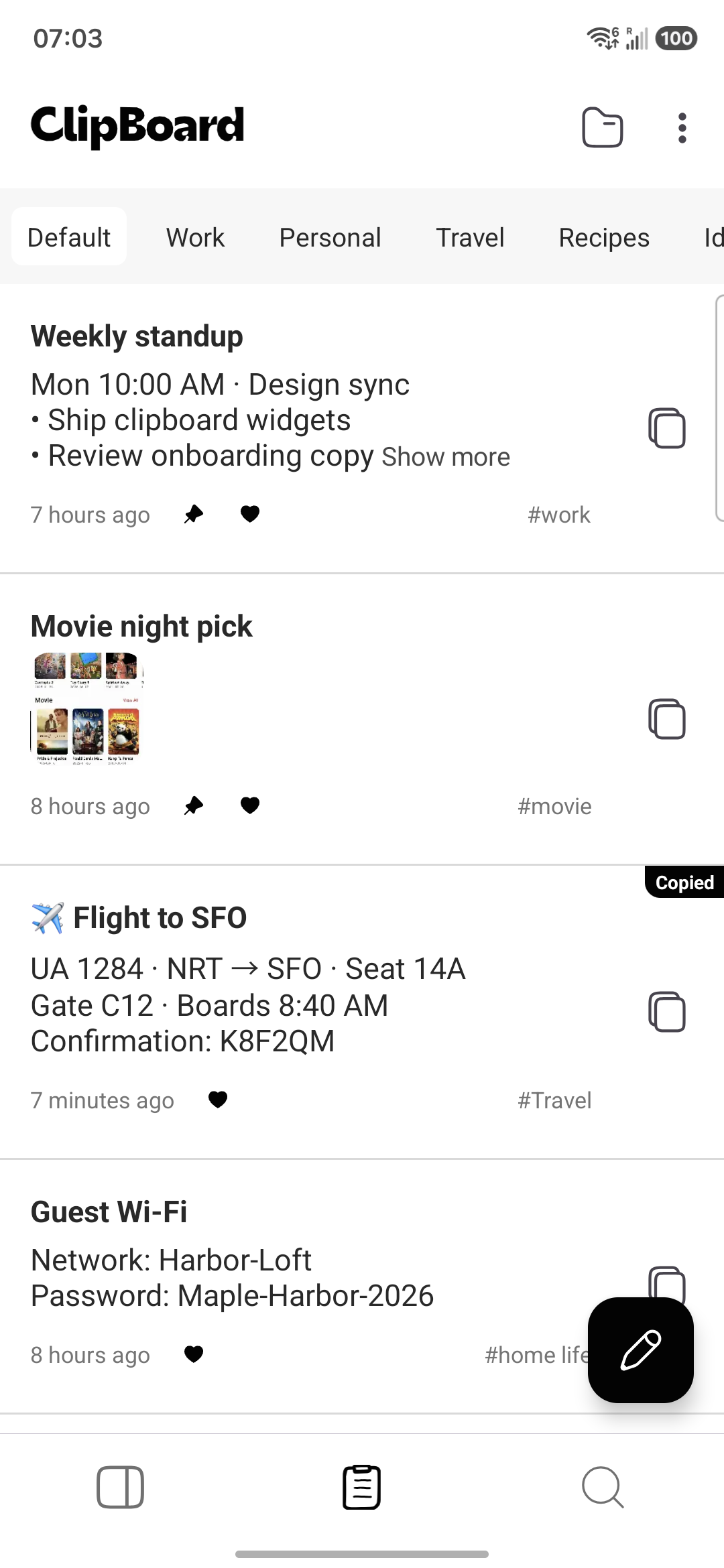
New clips go into your current folder. The default folder is named Default. You can create folders with New Folder, rename them with Edit Folder, and file an existing clip with Move to. The app remembers the last folder you selected. Useful names include Replies, Addresses, and Links.
Pin and search the ones you use most
Pin a frequent snippet so it stays easy to find, or unpin it later. You can also add tags if you want another way to group clips. When the list grows, use Instant search to find a snippet without scrolling.
Reuse a snippet with one-tap copy
Open the folder, find the clip, and tap Copy. You will see a Text copied toast. Copy & close does the same and leaves the app. Then switch to the destination app and paste as usual.
If you are already writing in another app, open Quick Settings and tap Clipboard's Recent Clips tile, pick the item to copy it, then paste. If the tile is not in your panel, open the Quick Settings editor and add it. Clipboard copies the text; it is not a keyboard that inserts the snippet as you type.
Examples of snippets worth saving
- Support replies: a polite status update, a refund explanation, or the hours you are available.
- Address: your home or return address, written in the format you always need.
- Sign-off: your name, title, and contact line at the end of an email.
- Meeting link: the standing video-call URL you share every week.
Save the full text, not a shortcut you have to remember. When you need it, search or open the folder, copy, and paste.
Tips
- Do not store passwords, payment details, or one-time codes as snippets. Use a password manager, and clear the clipboard after you copy something sensitive.
- Saving AI prompts is a specialized case of the same idea. See how to save and reuse AI prompts with clipboard history.
- Planning a one-time collection of several items to paste now? See how to copy multiple things at once on Android. Looking for something you copied earlier rather than a lasting library? See how to see paste history on Android.
Frequently asked questions
Is Clipboard a text expander?
No. Clipboard is not a text expander. It does not watch what you type or expand an abbreviation, such as ;addr, into a longer phrase. You save the full reply or snippet, find it in your list, copy it with one tap, and paste it in the app where you are writing.
Does Clipboard save everything I copy in other apps automatically?
No. Copying text in another app does not automatically add it to Clipboard's history. You save each snippet on purpose: select text and choose Clipboard from the text selection menu, share text to Clipboard, use the Quick Add tile and paste it in, or create a note in the app. Only items you create or save in the Clipboard app go into your history and Pro sync.
Are folders and sync free?
Folders, pinning, search, and one-tap copy work in the free Android app on that device. Folders do not require Pro. The Android, Mac, and Windows apps are free and keep history on that device. On Android you save each snippet on purpose; the Mac and Windows apps auto-save copies. Sync between devices and the Web app need a Pro plan.
How do I paste a saved reply?
Open Clipboard, find the clip, and tap Copy. You will see a "Text copied" toast. You can also use Copy & close, or copy an item from the Recent Clips Quick Settings tile. Then switch to the app where you are writing and paste as usual. Clipboard copies the text; it is not a keyboard that inserts it as you type.
Can Gboard pins replace a snippet library?
Pinning a few items in Gboard is useful for a short list you need today. Unpinned items last about one hour, and the tray is not a searchable, folder-based library. For canned replies you want to keep until you delete them, save the full text in a clipboard manager.
Related articles
Keep replies you can paste, not retype
Save the full text in Clipboard, file it in a folder, then copy with one tap and paste where you need it.