
What you are clearing depends on which clipboard you mean
| Place | What clearing does | What it does not do |
|---|---|---|
| Android system clipboard | Removes or replaces the current paste buffer | Wipe keyboard history or a saved history app |
| Keyboard clipboard panel (Gboard, Samsung Keyboard, and similar) | Deletes recent or pinned items in that keyboard | Guarantee every OEM history list is empty |
| Clipboard app saved history | Deletes clips you created or saved inside Clipboard | Happen when you only overwrite Android’s current copy |
If those layers still feel interchangeable, read clipboard vs pasteboard on Android. The short version: “copied to clipboard” means something is ready to paste now. It is not proof that a permanent archive exists—or that clearing the temporary buffer erased every place a copy might still appear.
How to clear the Android system clipboard
Android’s system clipboard holds the current content for paste. Stock Android does not offer one universal Settings button named Clear clipboard on every phone. The practical user steps are the same across Pixel, Samsung, and other Android devices:
- Open any app with a text field you control, such as Notes or Messages.
- Type a harmless character or short phrase you do not mind pasting later—or leave a single space.
- Select that text and choose Copy.
- Open another field, touch and hold, and check Paste. You should see the harmless text, not the sensitive item.
That overwrite replaces the previous primary clip. It is the reliable way to clear clipboard content without depending on a manufacturer-specific menu. On Android 9 (API 28) and later, apps can also call the system clearPrimaryClip() API; end users do not need that call if they can simply copy something else.
On Android 13 and later, the system also clears the primary clipboard automatically after a period. Google’s secure clipboard handling guide describes that automatic clearing. Waiting can help privacy for the temporary buffer, but it is not a substitute for overwriting a password you just copied if you need it gone immediately—and it does not empty a keyboard history tray.
Android 13+ also shows a brief copied-content preview and lets apps mark sensitive clips so previews are obfuscated. That privacy UI is separate from deleting keyboard history or a saved clip list.
How to clear Gboard clipboard history
Gboard keeps its own recent clipboard tray. Unpinned items disappear after about one hour, which is different from Android’s system auto-clear and different from deleting saved clips in Clipboard. To remove items yourself:
- Open a text field so Gboard appears.
- Open Clipboard from the toolbar or tools menu. Enable the tray if prompted.
- Touch and hold an item and choose Delete, or use the edit control to select several items and delete them.
- Leave pinned items alone only if you still want them. Unpin and delete anything you no longer need.
Google’s Gboard copy-and-paste help covers the clipboard panel and pinned section. Exact icons can vary by Gboard version. If your goal is to stop useful replies from expiring rather than to wipe them, see how to stop Gboard from deleting clipboard history—that guide is about pinning and saving, not about privacy cleanup.
How to clear Samsung Keyboard clipboard history
On many Galaxy phones, Samsung Keyboard maintains a clipboard history that is separate from Android’s single-item system buffer. If that keyboard is active:
- Tap a text field to open Samsung Keyboard.
- Open the clipboard panel from the toolbar. If you do not see a clipboard icon, open the toolbar overflow (often three dots) and look for Clipboard.
- Use the trash or delete controls to remove selected items, or clear the list when that option is offered.
- Confirm the panel no longer shows the sensitive entries.
Controls move between One UI versions, so treat the toolbar clipboard panel as the place to look rather than hunting for one universal Settings path. Clearing Samsung Keyboard history still leaves Android’s current paste buffer until you overwrite it, and it does not delete clips saved inside Clipboard.
Clearing the temporary clipboard ≠ wiping a history manager
After you overwrite Android’s paste buffer, you may still want searchable text you chose to keep—shipping addresses, reply templates, or reference notes. Those belong in a history manager only when you create or save them there.
Critical distinction for Clipboard: copying text in another app does not sync by itself. Content enters Clipboard history and Pro sync only when a clip is created or saved inside the Clipboard app. Clearing the system clipboard will not remove those saved entries, and installing Clipboard afterward cannot reconstruct copies it never recorded.
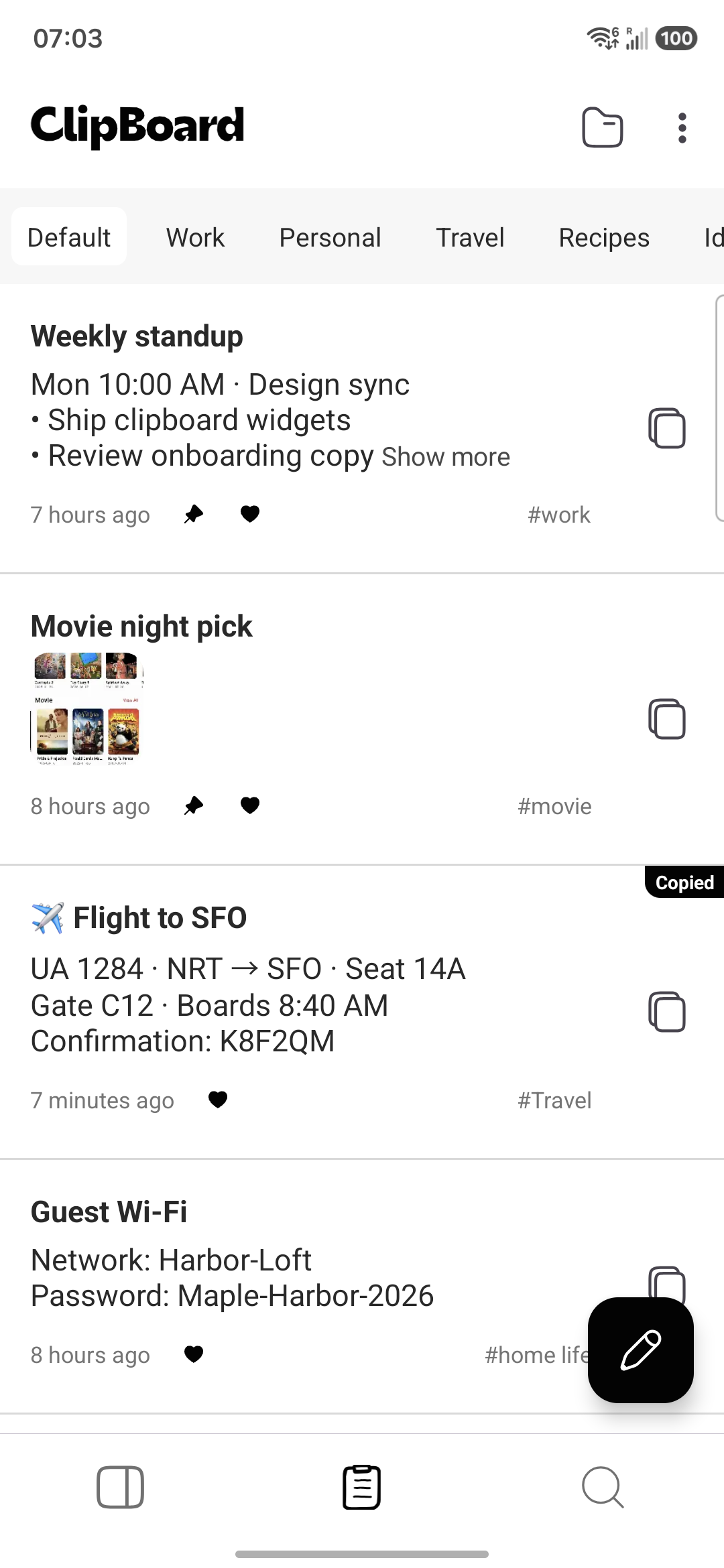
Free Clipboard keeps local text and image clips without ads. Pro adds cross-device sync across Android, Mac, and the Web app, plus folder backup and restore. Sync still requires creating or saving the clip in Clipboard first. There is no Windows or iPhone app.
How to delete clips inside Clipboard (if that is what you meant)
If your goal is to remove saved history rather than the temporary paste buffer:
- Open Clipboard and find the clip in the list.
- Delete the individual entry you no longer want.
- If you use Pro sync, confirm other signed-in devices after the change rather than assuming every copy disappeared instantly everywhere.
- If you rely on folder backups, remember that an older export can still contain deleted clips until you make a new export.
Before a phone reset, clearing local history is not a substitute for a planned backup. Use the new-phone recovery checklist if you need to move a collection rather than erase it.
Quick privacy checklist after copying something sensitive
- Overwrite the system clipboard by copying a harmless character.
- Open your keyboard clipboard panel and delete the sensitive item if it appears there.
- Check any other keyboard or OEM clipboard UI you sometimes use.
- In Clipboard, delete any saved clip that should not remain—only if you actually saved it there.
- Prefer a password manager’s autofill for credentials instead of leaving secrets in any clipboard layer.
iOS and macOS, briefly
Cross-platform “clear clipboard” searches often mix Apple and Android advice. On iPhone and Mac, Universal Clipboard and Continuity can move the current copy between signed-in Apple devices; clearing or overwriting on one device is still about the temporary paste buffer, not a third-party history app. Clipboard itself does not have an iPhone app. On Mac, you can overwrite the pasteboard the same way—copy something harmless—or manage saved clips in the Mac Clipboard app if you use Pro sync from Android. Keep Android as the place you clear first when the sensitive copy happened on your phone.
Frequently asked questions
How do I clear the clipboard on Android?
Overwrite the temporary system clipboard by copying something harmless, such as a single space or a short note you do not mind pasting. On Android 13 and later, the system also clears the primary clipboard automatically after a period. Separately delete items in your keyboard clipboard panel if you use one.
Does Android clear the clipboard automatically?
Yes on Android 13 and later. Google’s secure clipboard handling guidance describes automatic clearing of clipboard content after a defined period, which reduces how long copied text remains available to paste. Auto-clear does not delete a keyboard history tray or clips you saved in a history app.
How do I clear Gboard clipboard history?
Open a text field, open Gboard’s Clipboard panel from the toolbar or tools menu, then delete individual items or use edit mode to remove several. Unpinned recent items also disappear after about one hour. Pinning keeps an item in that tray; it is not the same as saving it in Clipboard.
Does clearing the system clipboard delete Clipboard app history?
No. The Android system clipboard holds the current paste buffer. Clipboard’s saved history is a separate list of clips you create or save inside the app. Clearing or overwriting what is ready to paste does not wipe that list.
Is there a Clear clipboard button in Android Settings?
Stock Android does not provide one universal Settings screen labeled Clear clipboard for every phone. Controls vary by manufacturer and keyboard. The reliable user action is to overwrite the current copy, then clear any keyboard history panel you use.
How do I clear clipboard history on a Samsung phone?
If you use Samsung Keyboard, open a text field, open the keyboard clipboard panel from the toolbar, then use the trash or delete controls to remove selected items or clear the list. Samsung’s clipboard history is separate from Android’s temporary system clipboard and from clips saved in Clipboard.
Will deleting keyboard history remove synced Clipboard Pro clips?
No. Keyboard trays are local to that keyboard. Clipboard Pro sync applies only to clips created or saved inside Clipboard. Copying in another app does not sync by itself, and clearing a keyboard panel does not delete Pro-synced saved clips.
Related articles
Clear what is temporary; save what you reuse
Overwrite Android’s current clipboard for privacy. Create or save intentional clips in Clipboard when you want searchable history afterward.