
Quick checklist
| Symptom | Most likely cause | Fix |
|---|---|---|
| No clipboard icon | Toolbar collapsed or Clipboard off | Expand the toolbar; turn Clipboard on in Gboard settings |
| No suggestion after copying | Suggestion setting off | Turn on clipboard suggestions in Gboard settings |
| Keyboard looks different | Another keyboard is default | Switch to Gboard and set it as default |
| Paste blocked in one app | App disables paste | Test in a notes app; use the app’s own method |
| Everything broken after update | Corrupted cache or old version | Update Gboard, then clear cache |
1. Make sure Gboard is the active keyboard
If you see a different keyboard layout, you are not using Gboard, so its clipboard will not appear. Samsung Keyboard, SwiftKey, and others each keep their own list.
- Open any text field so the keyboard appears.
- Tap the keyboard-switcher icon at the bottom right of the navigation bar, or open Settings → System → Languages & input → On-screen keyboard.
- Choose Gboard, and enable it in the list if it is not already on.
On a Galaxy phone, the default keyboard is often Samsung’s. See where the clipboard is on Samsung if that is what you are using.
2. Find the clipboard icon in the toolbar
- Open a text field with Gboard showing.
- Tap the arrow or four-square icon at the left of the suggestion strip to open the toolbar.
- Look for the clipboard icon. Touch and hold an icon and drag it into the top row if you want it always visible.
If the suggestion strip is missing entirely, Gboard’s suggestion strip may be turned off. Go to Gboard settings → Text correction and check Show suggestion strip.
3. Turn Clipboard on in Gboard settings
- Open Gboard settings: long-press the comma key and tap the gear, or use Settings → System → Languages & input → On-screen keyboard → Gboard.
- Tap Clipboard.
- Turn on the clipboard switch and, if shown, Show recently copied text and images in suggestions.
Gboard only records copies made after the setting is on. Copy something new, then open the clipboard to check. Menu names change between Gboard versions.
4. Check the app that won’t paste
If the clipboard works in a notes app but not in one specific app, that app is probably blocking paste or hiding clipboard content. Banking apps, password fields, and some secure messengers do this on purpose. No Gboard setting overrides it. Try typing the text, use the app’s own paste option, or use the web version of the service.
5. Update Gboard and restart
Open Google Play, search for Gboard, and update it. Then restart the phone. This clears stuck keyboard processes that sometimes stop the toolbar or clipboard from loading.
6. Clear Gboard’s cache (not its data first)
- Open Settings → Apps → Gboard → Storage.
- Tap Clear cache and reopen a text field.
- If that does not help, Clear storage (or Clear data) resets Gboard to defaults. This can remove pinned clipboard items and custom settings, so note anything important first.
7. Check for conflicts
Battery optimizers, other keyboard apps, and some accessibility tools can interfere with the keyboard. Disable any recent keyboard or “clean-up” app, restart, and test again. As a last step, disable and re-enable Gboard under On-screen keyboard.
If the clipboard works but your clips keep disappearing
That is a different problem. Gboard removes unpinned clips after about an hour by design, so a working clipboard still “loses” older items. We cover pinning and alternatives in how to stop Gboard from deleting clipboard history. This article is only about the clipboard not showing or not working at all.
A separate saved list as a backup plan
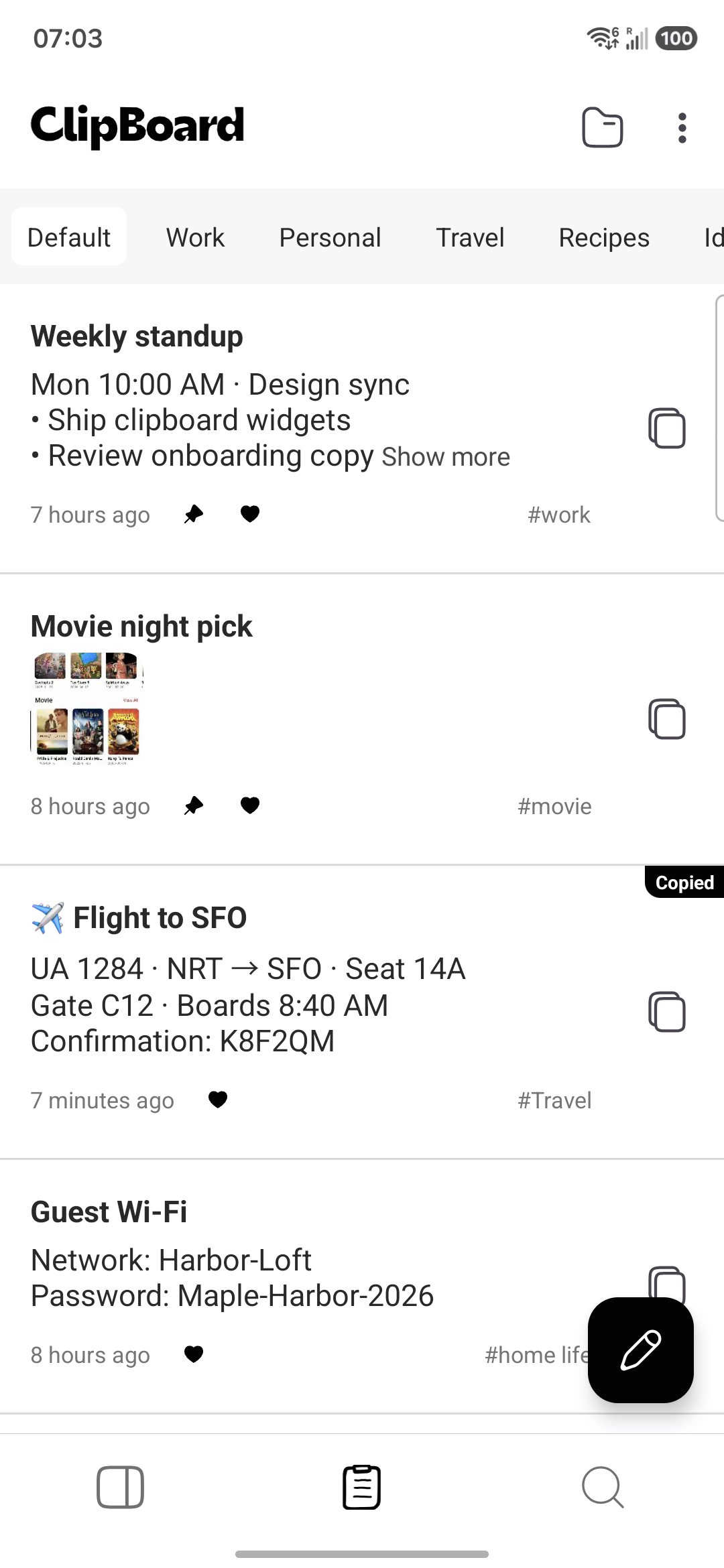
Fixing Gboard gets you its short-term tray back. If you also want text you reuse to stay around, Clipboard keeps saved clips in a searchable list, and it works alongside Gboard.
How it works on Android: copying text in another app does not automatically add it to Clipboard’s history or sync. Only items you create or save inside the Clipboard app go into your history and Pro sync. On Mac, the Clipboard app does auto-save copied content.
Frequently asked questions
Why is my Gboard clipboard icon missing?
The most common reasons are that Gboard is not your active keyboard, the toolbar is collapsed behind the arrow or four-square menu, or Clipboard is turned off under Gboard settings. Open a text field, expand the toolbar, and look for the clipboard icon. If it is not there, turn on Settings > Clipboard > Show clipboard in suggestions or the main Clipboard switch, depending on your Gboard version.
How do I turn on the clipboard in Gboard?
Open Gboard settings (long-press the comma key or open Settings > System > Languages & input > On-screen keyboard > Gboard), tap Clipboard, and switch on the clipboard. Wording differs by version. Then copy something and open the clipboard from the keyboard toolbar.
Why does Gboard not show a clipboard suggestion after I copy?
Clipboard suggestions only appear when the setting is on and when the app you are typing in lets the keyboard read the clipboard. Some password fields and secure apps block it. Also check that you copied after enabling the setting; Gboard cannot show copies made before it was on.
Why can’t I paste in some apps with Gboard?
A few apps, such as banking apps and password fields, disable paste or hide clipboard content for security. Try pasting in a notes app to confirm Gboard works. If it works there, the other app is blocking it and no Gboard setting will change that.
Will clearing Gboard’s cache delete my pinned clips?
Clearing cache usually does not remove pinned items, but Clear storage or Clear data resets Gboard settings and can remove pins and saved clipboard items. Try Clear cache first, and write down anything important before you clear data.
Does Clipboard fix a broken Gboard clipboard?
Clipboard does not repair Gboard. It is a separate app with its own saved list. Copying text in another app does not automatically add it to Clipboard on Android; only items you create or save inside the Clipboard app go into your history and Pro sync. The Mac app does auto-save copied content.
Related articles
Gboard fixed—now keep what matters
Save the clips you’ll need again in Clipboard.