
The quick answer: three Samsung clipboard places
| Where | How to open it | What it keeps |
|---|---|---|
| Samsung Keyboard clipboard | Text field → clipboard icon in the keyboard toolbar (or overflow menu) | A limited list of recent copies; older items roll off |
| Edge panel → Clipboard | Settings → Display → Edge panels → Panels → enable Clipboard, then swipe the edge handle | The same Samsung clipboard history, reachable without opening the keyboard |
| Galaxy device sync | Settings → Connected devices → Continue apps on other devices (One UI 3.1+) | The current copy across nearby Galaxy devices—not a long archive |
Android’s system clipboard still holds only the single most recent item for Paste. Everything older on a Galaxy usually comes from Samsung Keyboard or the Edge panel. For a broader Android view (including Gboard), see how to see paste history on Android.
1. Samsung Keyboard clipboard (the usual place)
On most Galaxy phones that still use Samsung Keyboard, this is where people expect to find clipboard history:
- Confirm Samsung Keyboard is the default: Settings → General management → Keyboard list and default (wording can vary by One UI).
- Open any text field so the keyboard appears.
- Tap the clipboard icon in the toolbar above the keys. If it is hidden, tap the three dots (or expand the toolbar) and choose Clipboard.
- Tap an item to paste it. Some One UI versions let you pin, lock, or delete items from that list.
If you switched to Gboard, Samsung’s keyboard clipboard will not show what you copied while Gboard was active—each keyboard keeps its own short list. Treat Samsung’s tray as a recent buffer: a limited number of items, with older ones dropping off as you copy more. Exact capacity and retention vary by One UI version and settings.
2. Edge panel Clipboard (one swipe, no keyboard)
Samsung’s Edge panels can surface the clipboard from almost any screen, which is handy on large phones and foldables when you do not want to open a text field first.
- Open Settings → Display → Edge panels and turn Edge panels on.
- Tap Panels and enable Clipboard (you can keep Apps, Tools, or others too).
- Swipe in from the edge handle, then swipe across panels until you reach Clipboard.
- Tap Copy on an item, or on many builds drag text or images into another app.
Available panels and drag-and-drop behavior depend on the model and One UI version. If you do not see a Clipboard panel at all, your build may not offer it, or Edge panels may be limited on that device. Samsung’s own support pages for Edge panels are the best check for your exact phone.
3. Copy and paste across Galaxy devices
If you own more than one Galaxy device—say a phone and a tablet—One UI can share the current clipboard between them. Samsung documents this under Continue apps on other devices (sometimes labeled similarly under Connected devices or Advanced features).
Typical requirements Samsung lists:
- Both devices signed into the same Samsung account
- Same Wi‑Fi network, Bluetooth on, devices nearby
- One UI 3.1 or later
- Continue apps on other devices enabled on both
Then copy on one device and paste on the other. This is seamless for a link or address you need right now. It is not a searchable multi-device history: the next copy replaces what you shared, and it does not help you find last week’s template. For moving clips to a Windows PC instead, see copy and paste between Android and Windows (Phone Link works well on many Samsung phones).
Samsung clipboard vs a saved Clipboard history
Samsung’s keyboard and Edge panel tools are excellent short-term trays. They are not built to keep every useful clip forever, to search last month’s address, or to sync the same saved list to Mac and a Windows browser.
How Clipboard (the app) actually works on Android: copying text in another app does not automatically add it to Clipboard’s history, and it does not sync by itself. Only items you create or save inside the Clipboard app go into your history and Pro sync. That is intentional on Android. On Mac, the Clipboard app does auto-save copied content—so cross-platform guides should not assume Android behaves the same way.
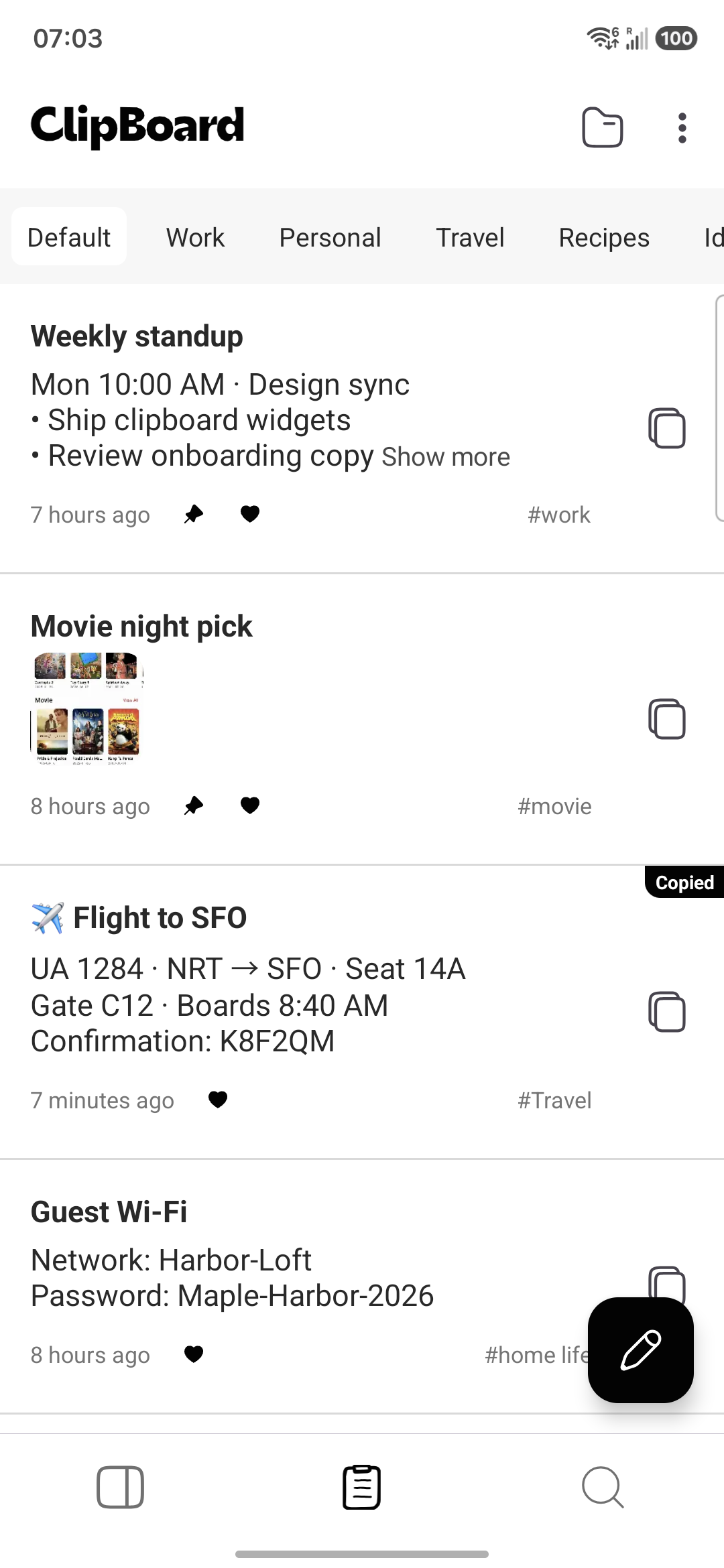
The free Android app keeps local history without ads. Clipboard Pro syncs those saved clips across Android, Mac, Windows, and the Web app. Sync still applies only to clips created or saved in Clipboard.
Which Samsung clipboard should you use?
- Paste something from five minutes ago: Samsung Keyboard clipboard.
- Grab a recent copy without opening a text field: Edge panel → Clipboard.
- Phone ↔ Galaxy tablet, one item right now: Continue apps on other devices.
- Templates, addresses, prompts you need next week—or on Mac/Windows: save them in Clipboard.
Need to wipe a password you just copied? Overwrite the system clipboard and clear the Samsung tray—steps are in how to clear the clipboard on Android. Comparing keyboard trays with dedicated apps more broadly? See keyboard clipboard vs a dedicated app.
Frequently asked questions
Where is the clipboard on a Samsung phone?
On most Galaxy phones the clipboard lives in Samsung Keyboard. Tap a text field, then tap the clipboard icon in the keyboard toolbar (or open the toolbar overflow and choose Clipboard). You can also add a Clipboard Edge panel under Settings > Display > Edge panels > Panels.
How do I open Samsung Keyboard clipboard history?
Open any text field so Samsung Keyboard appears. Tap the clipboard icon above the keys. If you do not see it, tap the three dots or expand the toolbar and choose Clipboard. Make sure Samsung Keyboard is your default keyboard, or that panel will not appear.
Does Samsung have an Edge panel for the clipboard?
Yes on many Galaxy models. Go to Settings > Display > Edge panels, turn Edge panels on, tap Panels, and enable Clipboard. Swipe in from the edge handle and swipe across panels until you reach Clipboard. Labels and available panels can vary by One UI version.
Can I copy on one Galaxy phone and paste on another Galaxy tablet?
On One UI 3.1 or later, Samsung’s Continue apps on other devices feature can share the current clipboard between nearby Galaxy devices signed into the same Samsung account, on the same Wi‑Fi, with Bluetooth on. It passes the current copy; it is not a long-term, searchable history.
Why can’t I find the clipboard on my Samsung?
Common causes: you switched to Gboard or another keyboard, the keyboard toolbar is collapsed or hidden, Edge panels is off or Clipboard is not selected under Panels, or your One UI build places the icon in the overflow menu. Check the default keyboard first, then the toolbar, then Edge panels.
Does Clipboard automatically save everything I copy on Samsung?
No. Copying text in another app does not automatically enter Clipboard’s history or sync. Only items you create or save inside the Clipboard app go into your history and Pro sync. The Mac app does auto-save copied content; Android does not.
Related articles
Found the Samsung clipboard—keep what matters
Use Galaxy’s built-in tray for recent copies. Save the clips you’ll need again in Clipboard.