
The quick answer: three places to check
| Where to look | What you can see | How long it lasts |
|---|---|---|
| Android system clipboard | Only the single most recent copy (long-press a text field and tap Paste) | Until you copy something else; Android 13+ also clears it automatically after a period |
| Keyboard clipboard panel (Gboard, Samsung Keyboard) | A short list of recent copies, plus anything you pinned | Gboard: unpinned items about one hour. Samsung: a limited recent list that varies by device |
| A clipboard app’s saved list | Every clip you created or saved there, searchable | Until you delete it |
If none of these show the item, it is usually gone. Android does not keep a hidden log of past pastes in Settings, and there is no file manager folder for it.
Why Android has no paste history
Android’s clipboard is designed as a hand-off space, not an archive. When you copy, the new item replaces the previous one. Pasting does not create a record either; it simply inserts whatever is currently on the clipboard. That is why “see what I pasted” has no system answer: the phone never stored a list of pastes in the first place.
Newer Android versions actually lean further toward privacy. On Android 13 and later, you see a brief on-screen preview after copying, and the system clears the clipboard automatically after a period. Google’s secure clipboard handling guide describes both behaviors. The preview confirms the current copy; it disappears after a few seconds and is not a history you can reopen.
For a longer explanation of the temporary buffer versus a saved list, see clipboard vs pasteboard on Android.
How to see recent copies in Gboard
Gboard is the default keyboard on Pixel and many other Android phones. Its clipboard panel is the closest thing most people have to a paste history:
- Open any text field so Gboard appears.
- Tap the Clipboard icon in the toolbar above the keys. If you do not see it, open the toolbar menu (often four squares or three dots) and look for Clipboard.
- If the panel is off, turn it on. Gboard only collects copies made after the clipboard is enabled.
- Tap an item to paste it, or touch and hold to pin it.
The catch is time. Google’s Gboard copy-and-paste help says unpinned items are deleted after about one hour. So if you are looking for something from yesterday that you did not pin, it will not be there. If expiring clips keep catching you out, our guide on how to stop Gboard from deleting clipboard history covers pinning and longer-term options.
How to see clipboard history on a Samsung phone
On many Galaxy phones, Samsung Keyboard keeps its own clipboard list, separate from Android’s single-item clipboard:
- Tap a text field to bring up Samsung Keyboard.
- Tap the clipboard icon in the keyboard toolbar. If it is hidden, open the toolbar overflow (often three dots) and choose Clipboard.
- Scroll the list and tap an item to paste it. Some versions let you pin or lock items so they are not removed.
Samsung’s list holds a limited number of recent items, and older ones roll off as you copy more. The exact limit, layout, and retention vary by One UI version and keyboard settings, so treat it as a short-term buffer rather than a record. If you switched to Gboard or another keyboard, Samsung’s panel will not show what you copied while using that other keyboard—each keyboard keeps its own list.
When the item is not in any list
If your keyboard panel was off, the item expired, or you copied something else afterward, there is generally no way to recover it on Android. Restarting the phone, checking Settings, or installing a clipboard app now will not bring back earlier copies; no app can reconstruct copies it never recorded. If you are moving to a new phone and want to carry saved clips across, the new-phone recovery checklist explains what can and cannot transfer.
The practical lesson: if a line matters later—an order number, an address, a reply you reuse—save it somewhere on purpose instead of hoping it stays on the clipboard.
How to keep a paste history that lasts
A keyboard tray is fine for “the thing I copied five minutes ago.” For anything you want next week, a clipboard history app gives you a durable, searchable list. Clipboard keeps text and image clips until you delete them, with search so you can find an entry without scrolling.
How Clipboard actually works: copying text in another app does not automatically add it to Clipboard’s history, and it does not sync by itself. Items enter Clipboard’s history only when you create or save them inside the Clipboard app. That makes the list intentional—what is there is what you chose to keep—rather than an automatic log of every copy.
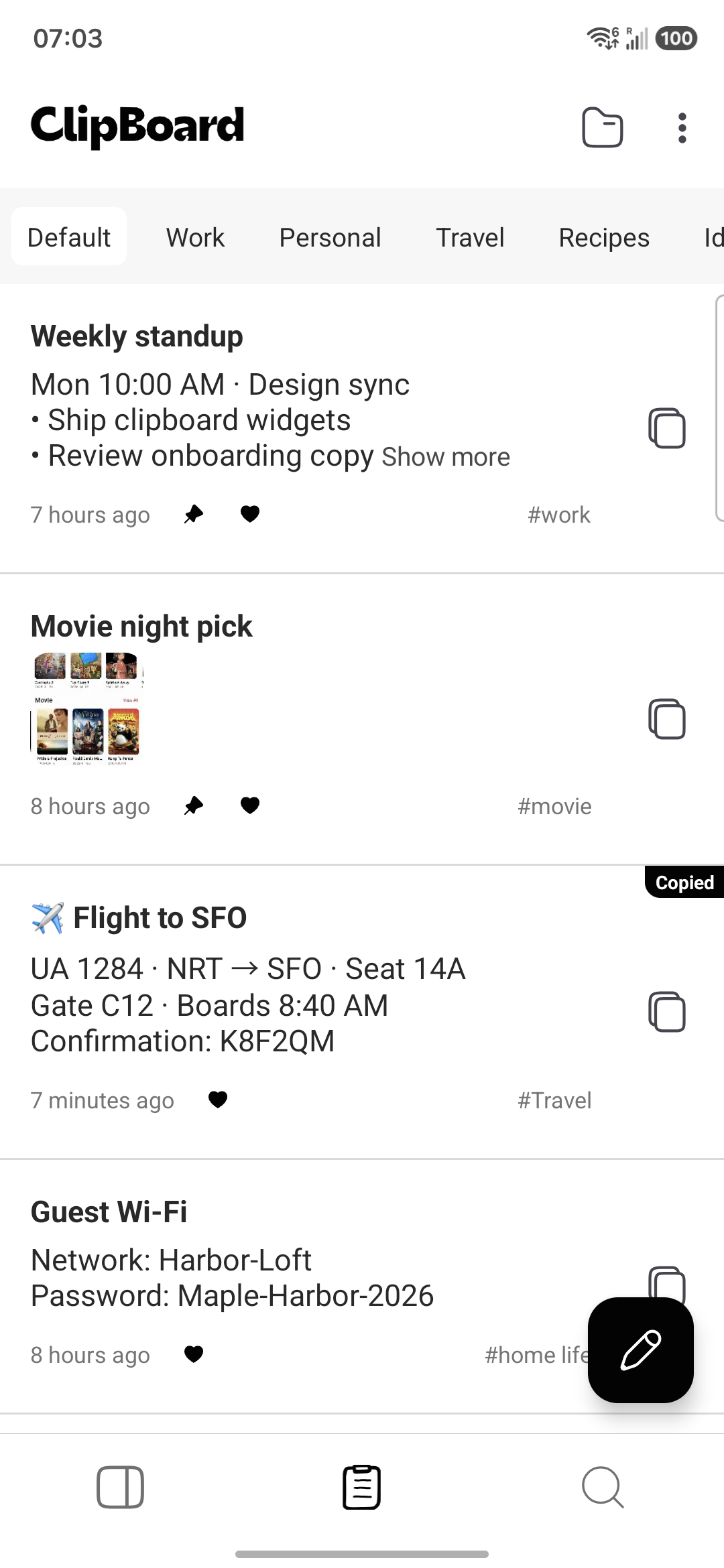
The free app keeps local history without ads. Clipboard Pro adds sync of those saved clips across Android, Mac, and Windows (in the browser via the Web app), plus folder backup and restore. Sync still applies only to clips created or saved in Clipboard.
Simple routine for never losing a useful paste
- Turn on your keyboard’s clipboard panel for short-term recall.
- Pin anything in the panel you need again today.
- Save anything you will need next week—templates, addresses, reference text—as a clip in Clipboard.
- Keep passwords and one-time codes in a password manager, not in any clipboard list. If you copied one, see how to clear the clipboard on Android.
Frequently asked questions
Where is my paste history on Android?
Android itself does not keep a paste history. The system clipboard holds only the most recent item you copied. If you see older items, they come from your keyboard’s clipboard panel (such as Gboard or Samsung Keyboard) or from a clipboard app where you saved them.
How do I see what I pasted or copied earlier?
Open a text field, then open your keyboard’s clipboard panel from its toolbar. On many devices Gboard and Samsung Keyboard show recent copies there. If the item is not in that panel and it was never saved in a clipboard app, Android does not keep another copy you can browse.
Does Android 13 have a clipboard history?
No. Android 13 and later show a brief preview of what you just copied and clear the clipboard automatically after a period, but they do not add a browsable list of past copies. The preview confirms the current copy only.
How long does Gboard keep paste history?
Google’s Gboard help says unpinned clipboard items are deleted after about one hour. Pinned items stay in the panel until you unpin or delete them. Gboard must have its clipboard feature turned on to collect recent items at all.
Where is clipboard history on a Samsung phone?
On many Galaxy phones, open Samsung Keyboard in any text field and tap the clipboard icon in the keyboard toolbar (or find Clipboard in the toolbar overflow menu). It keeps a limited list of recent items; how many and for how long varies by One UI version.
Can I recover paste history I never saved?
Usually not. If an item has been replaced on the system clipboard, expired from the keyboard panel, or was copied before any history tool was set up, there is generally no hidden Android log to restore it from. Installing an app afterward cannot reconstruct earlier copies.
Does Clipboard automatically record everything I copy?
No. Copying text in another app does not automatically enter Clipboard’s history or sync. Items enter Clipboard’s history—and Pro sync—only when you create or save them inside the Clipboard app.
Related articles
Keep the pastes you’ll need again
Android only remembers your last copy. Save the clips you reuse in Clipboard and search them anytime.