
Quick answer: which method should you use?
| Method | Best for | What to check |
|---|---|---|
| Google Lens (Google Photos or Google app) | Photos and screenshots already on your phone | Lens button placement varies by version |
| Samsung Gallery text extraction | Galaxy phones | Control name and location vary by One UI version |
| Circle to Search | Text on screen, including an open photo | Only on supported devices with the feature turned on |
| Clipboard Recognize screen | Visible text you want to review and save | Open the photo full-screen first; approve screen sharing |
None of these is perfect. Treat the output as a draft and proofread anything you will send, pay, or enter into a form.
Method 1: Google Lens
Google describes copying text from a photo with Lens in its Google Photos help guide. The usual steps are:
- Open the photo or screenshot in Google Photos.
- Tap Lens. If you do not see it, check the menu on the photo screen or update the app.
- Tap or drag across the recognized words, then choose Copy text.
- Open the destination app, touch and hold a text field, and tap Paste.
You can also use the Google app's Lens camera to point at printed text and select it live. Button names and layouts change between releases, so use the steps as a guide, not a script.
Method 2: Samsung's text extraction in Gallery
Many Samsung Galaxy phones can pick out text inside a photo from the Gallery app. Open the photo and look for a text or recognition icon, often a small box with text lines, or touch and hold on the words. Samsung's wording and placement depend on your One UI version and Gallery version, so we do not describe an exact path here.
If you see selection handles, drag them over the words and tap Copy. If you only see a button that opens a text view, copy from there. Our guide on finding the clipboard on Samsung explains where the copied text goes afterwards.
Method 3: Circle to Search
On supported phones, Circle to Search lets you hold the navigation handle or button, then circle, highlight, or tap something on screen. When the selection is text, the result can let you select and copy it. Because it works on whatever is on screen, you can open a photo first and then circle the words.
This feature is not on every Android phone, and it can be turned off in settings. If gesture or button navigation behaves differently on your device, check your phone's own help pages for the exact trigger.
Method 4: Use Clipboard to review and save the text
Clipboard's Android app has a screen OCR feature called Recognize screen. It reads the text visible on screen, lets you edit it, and then saves a clip in Clipboard. We have not confirmed that Clipboard can read images straight from your gallery, so the workaround is simple: open the photo full-screen, then run Recognize screen.
- Open the photo in your gallery app and view it full-screen. Zoom in if the text is small.
- Start Recognize screen from the Quick Settings tile or Clipboard's floating shortcut, if you have them set up in your version.
- Review Android's screen sharing prompt and approve it only if the right content is showing.
- Edit the recognized text, then choose Copy and save or Save only.
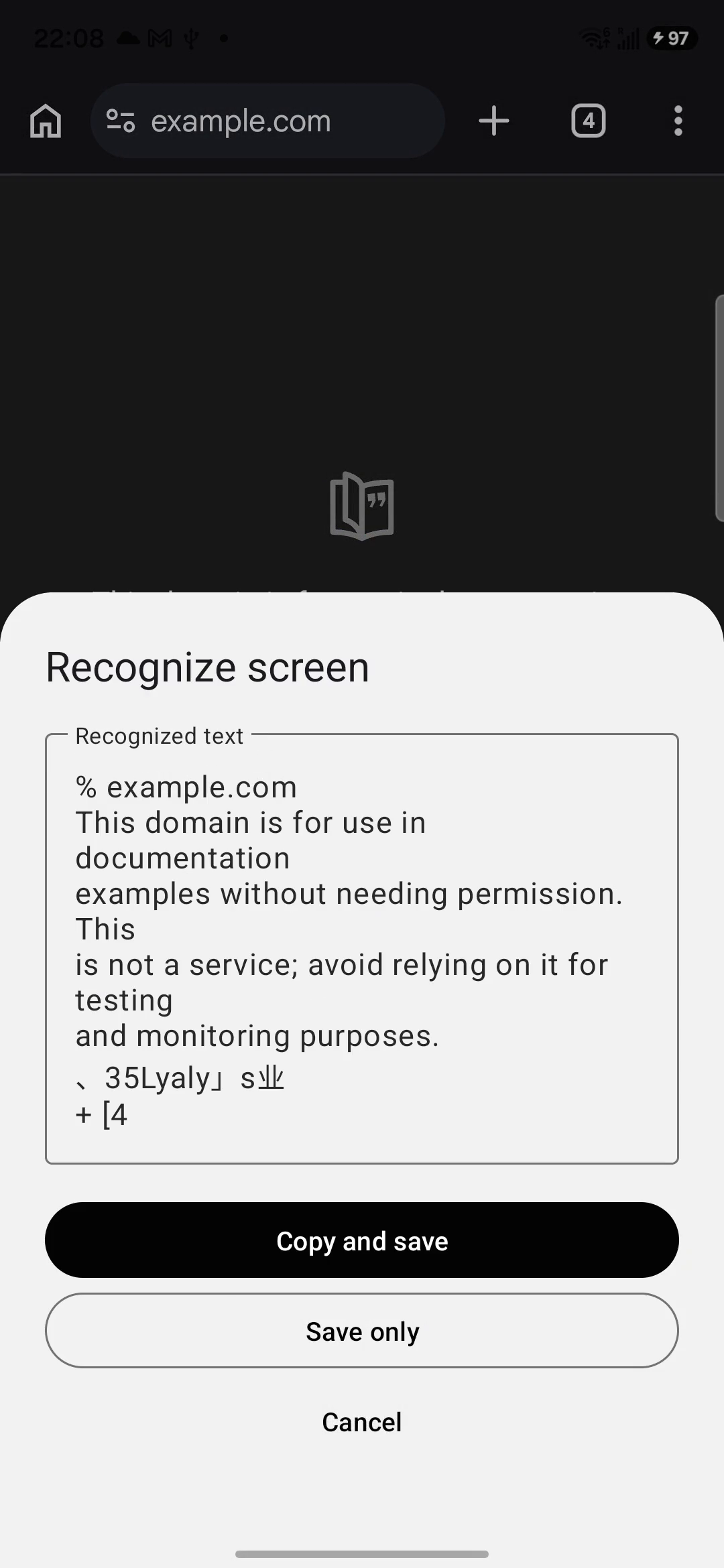
The full flow, including the permission dialog and offline behavior, is covered in how to copy text on screen on Android. Check your installed version for the controls, because availability and placement can change.
Copying in other apps does not save to Clipboard history
If you copy text with Lens, Samsung Gallery, or Circle to Search, that text goes to the Android system clipboard. It does not automatically enter Clipboard history. Only entries created or saved inside the Clipboard app are stored, and only those can use Pro cross-device sync. If you want to keep the text, save it in Clipboard, for example with Copy and save or Save only after Recognize screen.
Tips for better results
- Use good light and hold the camera straight on to the page to avoid skewed lines.
- Crop or zoom to the part you need so Lens or OCR has less to misread.
- Check digits carefully: zero and the letter O, one and lowercase L, and missing punctuation in links are common mistakes.
- Handwriting, curved packaging, and low-contrast text are the hardest cases.
- Delete sensitive photos such as IDs and receipts once you have copied what you need.
Frequently asked questions
Can Android copy text from a picture without installing an app?
Often yes. Many phones can do it with Google Lens, the Google Photos Lens button, Circle to Search, or a Samsung gallery text option. Which of these you see depends on your phone, Android version, and app versions, so check your own device.
How do I copy text from a photo in my gallery?
Open the photo in Google Photos and tap Lens, or in Samsung Gallery tap the text-recognition control if your version shows one. Select the words, copy them, and paste into a text field. Check numbers and names against the photo.
What is Circle to Search and can it copy text?
Circle to Search is a Google feature available on supported Android phones. You hold the navigation handle or button, then circle or tap something on screen. For text, the result can include a way to select and copy it. Availability depends on device and software.
Can Clipboard recognize text in a gallery image directly?
We have not confirmed a gallery-image import. Clipboard's Android app has a Recognize screen feature that reads what is visible on screen. To use it with a photo, open the photo full-screen first, then run Recognize screen and review the result.
Does text I copy with Google Lens appear in Clipboard history?
No. Text copied in other apps does not automatically enter Clipboard history. Only entries created or saved inside the Clipboard app are stored, and only those can use Pro cross-device sync.
Why is the recognized text wrong?
Blur, glare, small type, handwriting, mixed languages, and curved surfaces all reduce accuracy. Retake the photo straighter and in better light, zoom in on the part you need, and always proofread before using the text.
Related articles
Save the text you extracted
Use Clipboard on Android to keep reviewed text. Pro adds cross-device sync and folder backup/restore.