
First, find out which copy still exists
Do not clear app storage, uninstall Clipboard, or reset the old phone while you investigate. If its history still opens, that is your best starting point. A phone with a cracked screen may still contain the only copy of a useful collection.
There are three separate places to check: the old phone's saved clips, a folder export, and clips you previously saved and synced with Pro. The current Android clipboard is a fourth, temporary place, but it should not be treated as a backup of your history.
| What you still have | Next step | Main limit |
|---|---|---|
| Old phone with saved clips | Export with Pro before resetting | You must copy the export off that phone |
| A complete folder backup | Import with Pro on the new phone | Import overwrites current clips |
| Previously synced clips | Check the same account with Pro sync | Local-only or unsaved text is not included |
| Only a restored app installation | Open it and inspect the actual history | An app icon is not proof of restored data |
| No saved or backed-up copy | Return to the original sources | Some items may be unrecoverable |
If “clipboard” and “saved history” sound interchangeable, read our clipboard history guide. The difference explains why restoring an app cannot recover every sentence you ever copied.
What Google backup can and cannot promise
Android device backup can help move apps and app data to a new phone. It does not promise a complete archive for every clipboard app. Google's Android backup and restore guide explicitly says that not all apps can back up or restore all settings and data.
Use the phone's backup and transfer tools as part of the move. Then open Clipboard and inspect a few real entries. Check an older clip, a recent clip, and an image. Seeing the app installed, your account name, or familiar settings is not enough to establish that the collection arrived.
This is why an app-specific export matters. It gives you a copy you can locate and move yourself. It also makes the recovery plan less dependent on assumptions about what the phone migration tool included. Keep both the original data and the export until you have checked the destination.
Before the move: check what you want to preserve
- Open Clipboard on the old phone and inspect the saved history.
- Find a few important entries that you can recognize after restoring.
- Include an image clip in your checks if you save pictures.
- Confirm that you have access to Pro for backup and restore.
- Choose a backup location you can also reach from the new phone.
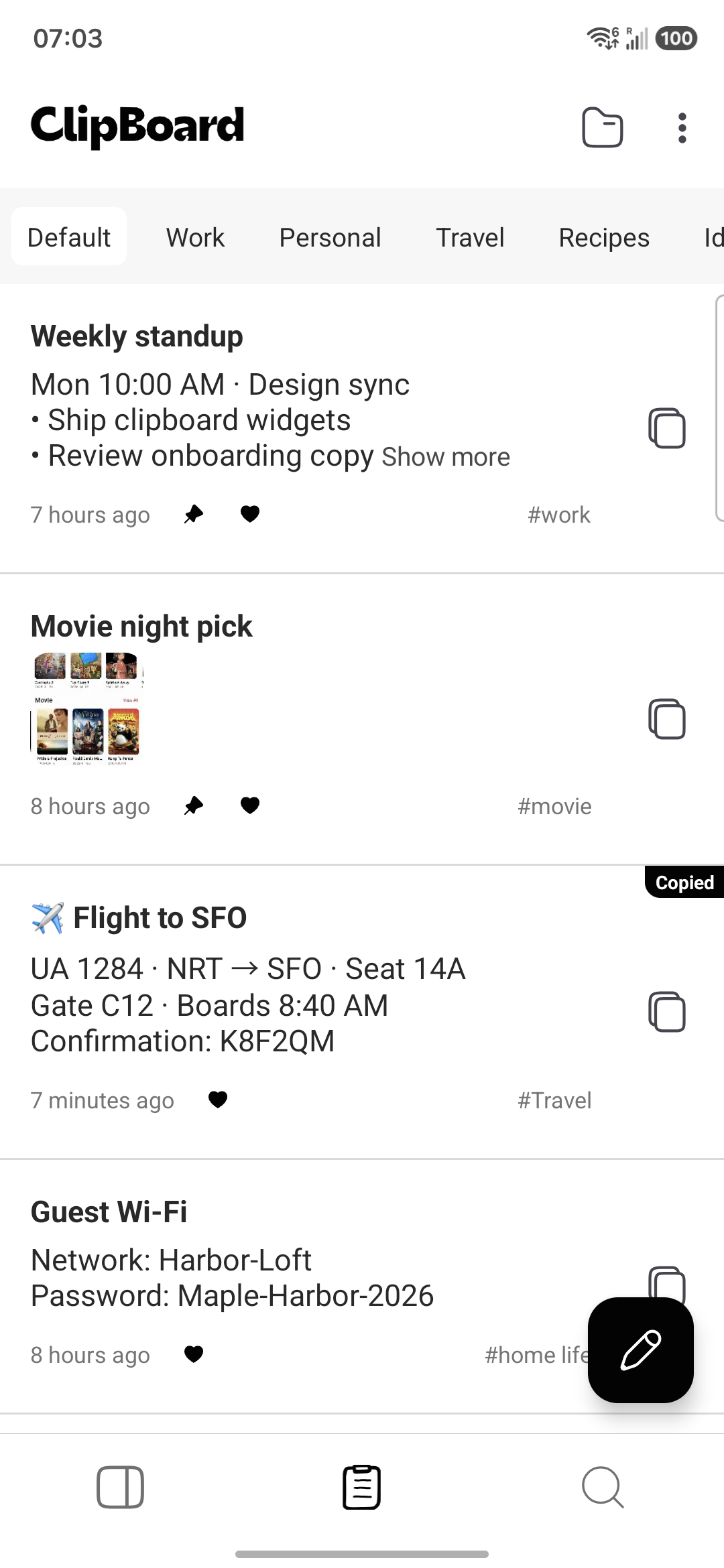
Write down a distinctive phrase from one old entry. After import, searching for that phrase is a better check than glancing at the first item. If there is a picture you need, open it on the old phone now so you know what should appear later.
Export Clipboard data to a folder with Pro
Clipboard's backup and restore tools are Pro features. The export copies the SQLite database and images to a user-chosen folder. You do not need to open or edit the database yourself.
- Open Clipboard on the old Android phone.
- Go to Settings → Backups → Export data.
- Choose the destination folder when prompted.
- Let the export finish, then check that the exported data exists in that location.
- Copy the complete exported data to a location accessible from the new phone.
A folder on the old phone is useful during export, but it disappears with a factory reset. Before erasing the device, move the backup to storage you control outside it. That might be a computer or another storage location you normally use. Confirm the transfer completed rather than relying on a file name alone.
Keep the exported files together. Copying only images does not preserve the clip database, and copying only the database can leave image clips without their files. Avoid renaming individual files or editing the SQLite data as part of a normal phone move.
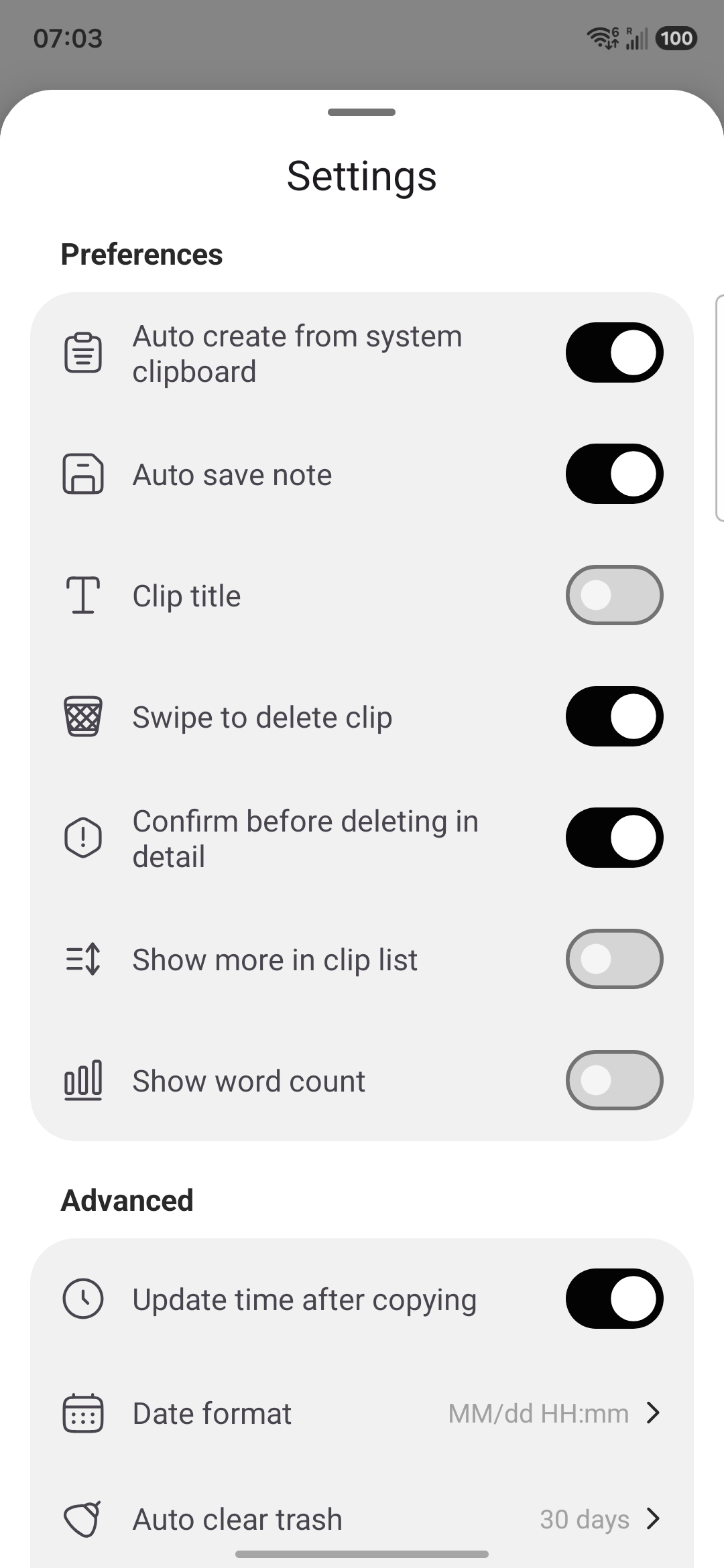
The preference labels in that screenshot are not a guarantee of background capture. Copying inside another app does not mean a clip was created or saved in Clipboard. Open the history and check for the actual entry before assuming it is in your export.
Import on the new phone: read the overwrite warning
Import replaces the current clips. It is not a merge. If you have already started saving things on the new phone, preserve those items first. Otherwise, recovering the old history can remove the new collection you just made.
- Install Clipboard from the official download page and confirm Pro is available for restore.
- Make the complete exported backup accessible on the new phone.
- If the destination already has clips you need, export them to a separate folder first.
- Open Settings → Backups → Import data and select the backup location.
- Read the dialog: “The imported data will overwrite the current clips...”
- Proceed only when you are ready to replace the destination's current clips.
- After import, inspect the restored collection before deleting any original copy.
Keep the old-phone and new-phone exports in separate, clearly labeled folders. Importing one and then the other is not a way to combine them. If both contain unique material, decide which collection to restore and preserve the other separately until you have a plan for the entries you need.
Verify the restore before erasing anything
Find the distinctive phrase you noted earlier. Open the clip and check the full content, not just its title. Then check an image and a few entries from different dates. Copy one restored text clip into a temporary note to confirm it contains the text you expected.
If entries or images are missing, keep the old phone intact. Confirm that you selected the intended export and transferred its complete contents. Do not repeatedly import unrelated folders into a collection that contains new work. Preserve what you have before another replacement.
Only reset the old phone after the new history checks out and you still have a separate backup. Two copies on the same device do not help if that device is lost.
What signing in and sync do not restore
Signing in identifies an account. It does not recreate local-only clips from a phone you can no longer access. Clipboard's free tier has no cross-device sync, so there is no free cloud history to rely on as a substitute for an export.
With Pro, previously saved and synced clips may be available on your other devices. Inspect those copies before changing anything. Sync only starts when a clip is created or saved inside Clipboard; copying a line in a browser does not automatically sync it. An item that never became a saved clip cannot appear later just because you sign in.
For everyday movement between devices, see syncing Clipboard between Android and Mac. Treat that workflow separately from a folder backup. A backup preserves an exported copy at a particular point in time; a live collection is where you continue working.
If the old phone is gone and no backup exists
Check any other device where you previously accessed saved, synced clips. For Pro sync, the Web app is another place to inspect the account's available clips. Do not assume that signing in there will reveal text that was only on the lost phone.
For missing items, return to source messages, emails, browser bookmarks, downloaded documents, and screenshots. A screenshot can help reconstruct a passage with Android screen text recognition. Check the result carefully; recreating text from an image is not restoring the original clip record.
There may be no recovery route for text that existed only in a temporary clipboard or an erased local database. Installing another history manager afterward cannot recover copies it never recorded. Save the sources you can still reach, then set up a backup for the collection you rebuild.
Make the next phone move easier
Automatic backup is also Pro. If you use it, periodically check the chosen destination and confirm that a recent backup is present. A setting that was enabled months ago is not proof that today's data is safe or that the destination is still accessible.
Make a fresh export before a phone reset, repair, or migration. Store backups thoughtfully: they contain your clip database and images. Clipboard data is encrypted in transit and at rest, but Clipboard is not end-to-end encrypted. Do not assume a folder you export is safe to share with someone else.
Frequently asked questions
Does Google backup restore all clipboard history?
No universal guarantee applies. Google says not all apps can back up or restore all settings and data. A restored app icon does not prove that its saved clip database or image files were restored. Check the history itself and keep an app-specific backup for important clips.
How do I back up Clipboard before changing phones?
With Clipboard Pro, open Settings → Backups → Export data and choose a folder. The export copies the SQLite database and images. Keep the complete exported data somewhere accessible from the new phone, not only on the phone you plan to erase.
How do I restore a Clipboard backup?
With Pro on the destination phone, open Settings → Backups → Import data and choose the backup location. Import overwrites current clips. Export anything you need from the destination first, then read the confirmation dialog before proceeding.
Will signing in bring back local-only clips?
An account alone does not bring back clips that existed only on the old phone. Free Clipboard does not include cross-device sync. Pro sync can make previously synced clips available, but it cannot recover items that were never created or saved in Clipboard.
Can I recover text that I copied but never saved?
Clipboard cannot restore a history entry that was never created or saved inside the app. Look for the original message, page, document, or screenshot. If there is no saved clip, backup, synced copy, or source, recovery may not be possible.
Does Clipboard have automatic backups?
Automatic backup is a Pro feature, as are manual export and import. Check that the chosen destination remains accessible and that a recent backup actually exists. Enabling backup today does not recreate clips already lost.
Does importing combine the old and new clip lists?
No. Treat import as replacement. The dialog warns that the imported data will overwrite the current clips. Preserve any new-phone clips you need before importing and do not assume that a second import will merge two backups.
Related articles
Keep a recoverable copy
Create and save the clips you need, then use Pro backup to preserve a copy before moving phones.