
The quick comparison
| Option | Phones | What moves | How long it lasts | History |
|---|---|---|---|---|
| Microsoft Phone Link | Only supported devices (mainly Samsung Galaxy, plus select HONOR, OPPO, ASUS, vivo, Xiaomi, and Surface Duo) | The current copy (text and images) | Until you copy something else | No |
| SwiftKey Cloud Clipboard | Any Android phone using the SwiftKey keyboard | Only your last copied text clip | About one hour | No (one item) |
| Clipboard + Web app | Any Android phone; any browser on Windows | Clips you create or save in the Clipboard app | Until you delete them | Yes, searchable (sync requires Pro) |
If you just need one link right now and own a supported Samsung, Phone Link is the most seamless. If you want something you can come back to later, a saved, searchable history is the better fit.
Method 1: Microsoft Phone Link (supported phones only)
Phone Link is built into Windows 10 and 11 and pairs with the Link to Windows app on your phone. On supported devices it adds cross-device copy and paste, so you copy on one device and paste on the other with the usual shortcuts.
- On your PC, open Phone Link and link your phone with the same Microsoft account used in Link to Windows.
- In Phone Link, go to Settings > Features > Cross-device copy and paste and turn the toggle on.
- Copy text or an image on your phone, then press Ctrl + V on your PC (or the reverse).
The catch is device support. Microsoft’s cross-device copy and paste help lists Surface Duo, Samsung phones on One UI 2.1 or later, and select HONOR, OPPO, ASUS, vivo, and Xiaomi models. On a Pixel or many other Android phones, the option may be missing, or may only work in one direction.
Phone Link also has no history of its own. Microsoft notes that every time you copy on either device, the new copy replaces the clipboard on both. If you copied an address on your phone and then copied something else on your PC, the address is gone.
Method 2: SwiftKey Cloud Clipboard (last item, about an hour)
If your phone is not on Phone Link’s list, Microsoft SwiftKey Keyboard offers Cloud Clipboard, which syncs copied text with Windows clipboard history.
- Install SwiftKey on Android and set it as your keyboard.
- In the SwiftKey app, open Rich input > Clipboard and turn on Sync clipboard history to the cloud. Sign in with a personal Microsoft account.
- On Windows, open Settings > System > Clipboard and turn on Clipboard history and sync across devices with the same account.
- Copy on your phone, then paste on the PC with Ctrl + V or pick it from Win + V.
The limits are tight. Microsoft’s SwiftKey Cloud Clipboard help says it only ever keeps your last copied clip, and that clip is available for about an hour. It works with SwiftKey only, so you have to switch keyboards, and it requires a personal Microsoft account (not a work account).
Method 3: Clipboard on Android + the Web app on Windows
Clipboard is a clipboard manager for Android, Mac, and Web. Instead of passing one item across, it keeps a searchable history of the clips you saved, and you can open that history on your Windows PC in the browser.
- Download Clipboard on your Android phone and sign in.
- Copy the text or link on your phone, then save it as a clip in Clipboard.
- On your Windows PC, open the Clipboard Web app in any browser (Edge, Chrome, Firefox) and sign in with the same account.
- Find the clip at the top of your history or with search, copy it, and paste it anywhere on Windows. It works the same way from PC to phone.
How Clipboard actually works: copying text in another app does not automatically add it to Clipboard’s history, and it does not sync by itself. Only items you create or save inside the Clipboard app go into your history and sync. Syncing between Android and the Web app requires Clipboard Pro; the free Android app keeps local history without ads.
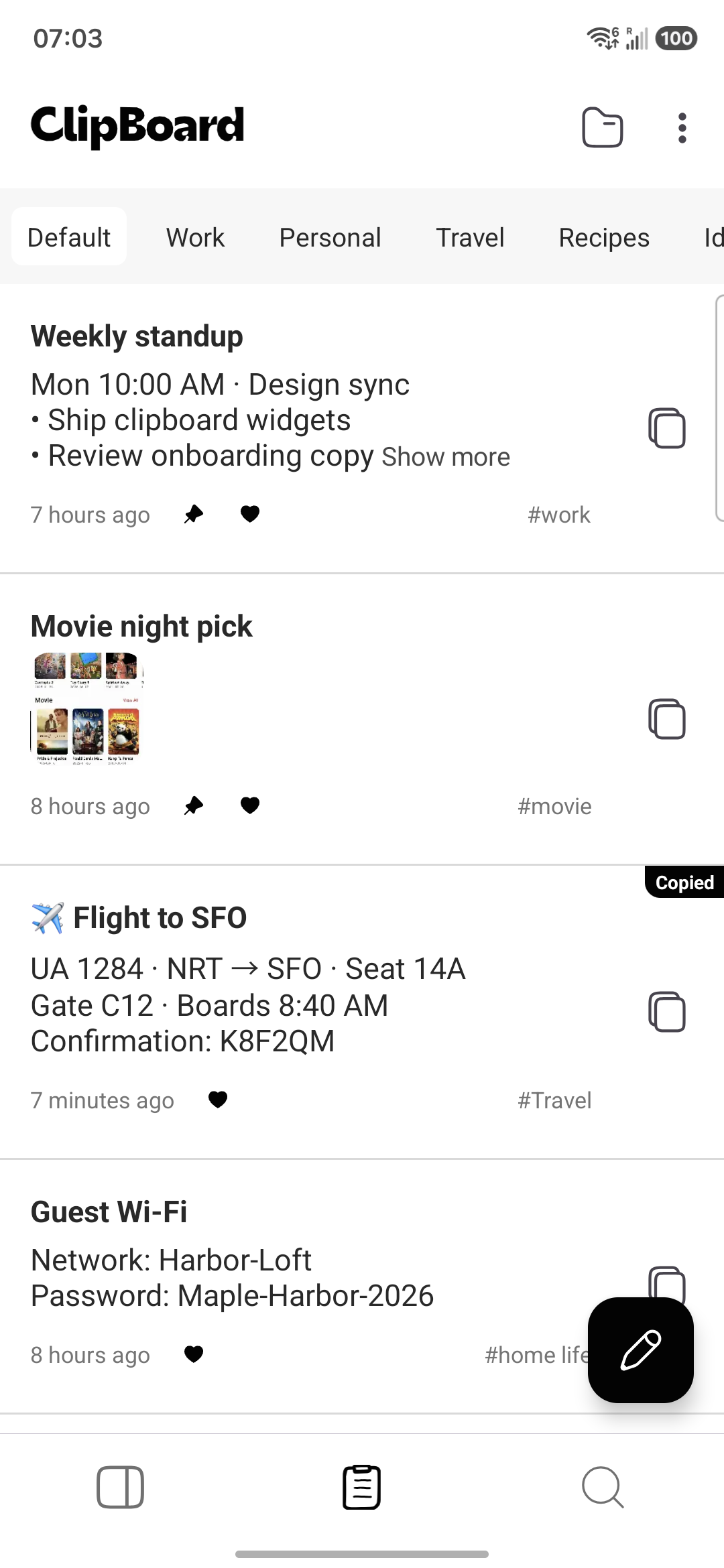
Because saved clips stay until you delete them, you can paste the same address, reply template, or prompt again tomorrow without sending it to yourself a second time. Images work too; see syncing clipboard images between Android and Web.
A native Windows desktop app is coming soon. Until then, the Web app is the way to use Clipboard on Windows—you can bookmark or pin it in your browser.
Which method should you use?
- Supported Samsung (or other listed) phone, one item at a time: Phone Link is the most seamless.
- Any phone, quick one-off text, and you don’t mind SwiftKey: Cloud Clipboard works, as long as you paste within about an hour.
- You reuse what you copy, or want to find it later: save it in Clipboard and open it from the Web app.
- Only once in a while: sending it to yourself by email or chat is still fine.
Using a Mac instead? See how to copy and paste from Android to Mac. Comparing tools more broadly? Our cross-platform clipboard manager guide covers what to look for.
Tips for copying between Android and Windows
- On Windows, turn on Win + V clipboard history so recent PC copies are easy to find. See how to see clipboard history on Windows, Mac & Android.
- If Phone Link copy and paste stops working, check that the toggle is still on and that both devices are on Wi-Fi (or that syncing over mobile data is allowed).
- Avoid syncing passwords and one-time codes. Use a password manager, and clear the clipboard after copying something sensitive.
Frequently asked questions
Can I copy on my Android phone and paste on my Windows PC?
Yes, but not out of the box on every phone. Microsoft Phone Link can share the clipboard on supported phones, SwiftKey Cloud Clipboard can pass your latest copied text to Windows, and the Clipboard Web app lets you open clips you saved on Android in any browser on Windows.
Why is cross-device copy and paste missing in Phone Link?
Microsoft lists cross-device copy and paste only for Surface Duo and select Android phones, mainly Samsung Galaxy devices plus some HONOR, OPPO, ASUS, vivo, and Xiaomi models. On other phones the option may not appear, or may not work in both directions.
Does Phone Link keep a clipboard history?
No. Phone Link shares the current clipboard: every time you copy on either device, it replaces the clipboard content on both. It does not give you a list of earlier copies from your phone.
How long does SwiftKey keep synced clips?
Microsoft’s SwiftKey help says Cloud Clipboard only ever retains your last copied clip, and that clip is available for about an hour. It needs a personal Microsoft account and the SwiftKey keyboard on Android.
Is there a Clipboard app for Windows?
A native Windows desktop app is coming soon. Today you can use the Clipboard Web app at clipboardhistory.app/app in any browser on Windows. Syncing clips between Android and the Web app requires Clipboard Pro.
Does Clipboard automatically sync everything I copy on Android?
No. Copying text in another app does not automatically enter Clipboard’s history or sync. Only items you create or save inside the Clipboard app go into your history and Pro sync.
Related articles
Copy on Android, paste on Windows
Save the clips you need in Clipboard and open them from any browser on your PC.