
Pasteboard is a term, not a hidden Android folder
If an app says it copied a link to the pasteboard, try pasting into a text field. You usually do not need to find a second app or enable a separate storage location. In that context, “pasteboard” describes the same copy-and-paste job that Android calls the clipboard.
The terminology often comes from software written for several platforms or instructions originally written for Apple devices. It tells you little about how long the copied item will remain available. It also says nothing about whether an app keeps a history or sends content to another device.
For example, copying an order number puts it somewhere you can paste it into a support message. It does not, by itself, create a searchable record of all your order numbers. That second job belongs to a history feature or an app where you save entries.
Three different things people call a clipboard
| What you mean | Its job | What not to assume |
|---|---|---|
| Android system clipboard | Hold current content for copy and paste | A permanent archive of previous copies |
| Keyboard clipboard panel | Expose the history that keyboard keeps | The same retention or transfer behavior on every phone |
| Clipboard history manager | Keep saved entries for later reuse | Automatic capture, free sync, or automatic backups |
All three can appear in one workflow. You might save a reply in a manager, copy it to the system clipboard, and paste it using the keyboard. The content moved through several places, but the saved reply and the current paste buffer remain separate.
Clipboard, with a capital C, is the app described in this guide. “The clipboard,” in lowercase, usually refers to Android's system feature. Keeping those names distinct helps when a setting or help article seems to promise more than it does.
What Android's system clipboard actually does
The system clipboard helps one app hand content to another. Select a sentence in a browser, copy it, open a message, and paste. The message app receives what is available to paste at that moment. This is useful even if you never install a clipboard history manager.
Do not use that temporary space as a place to keep your only copy. Copying something else can replace the content you intended to paste. Android also has privacy protections around clipboard access and clearing; Google's secure clipboard handling guide describes automatic clearing on Android 13 and later.
The practical rule is simple: if a line matters tomorrow, save it somewhere today. A successful paste proves that the current copy worked. It does not prove that yesterday's line remains recoverable.
How to paste, and where to look for older items
- Open a text field where pasting is allowed.
- Touch and hold the field, then look for Paste.
- If you want an older item, check whether your keyboard offers a clipboard panel.
- If the item was saved in Clipboard, open Clipboard's history and find that entry.
- Copy the saved entry, return to the destination, and paste it.
A keyboard panel is not a universal Android archive. Its controls and retention depend on the keyboard and settings. Switching keyboards or moving phones can change what you see. Check the keyboard's own guidance before treating a pinned or recent item as a long-term record.
If Paste is unavailable, first check whether anything is currently copied and whether the destination accepts that content type. An image cannot always go into a plain text field. A destination that disables pasting will not necessarily accept content just because you found it in a history app.
Our clipboard history guide covers the wider differences between system and saved history. For Android app selection, see what to look for in an Android clipboard manager.
What a saved history manager adds
A history manager keeps entries you intend to reuse. Instead of asking “what is ready to paste right now?”, you can ask “where is the address I saved last month?” Text snippets and image clips can stay in a collection while the system clipboard changes many times.
In Clipboard, create or save the item inside the app, then check that it appears in the clip list. That visible entry is the thing you can return to later. If you only copied text while reading another app, do not assume Clipboard recorded it.
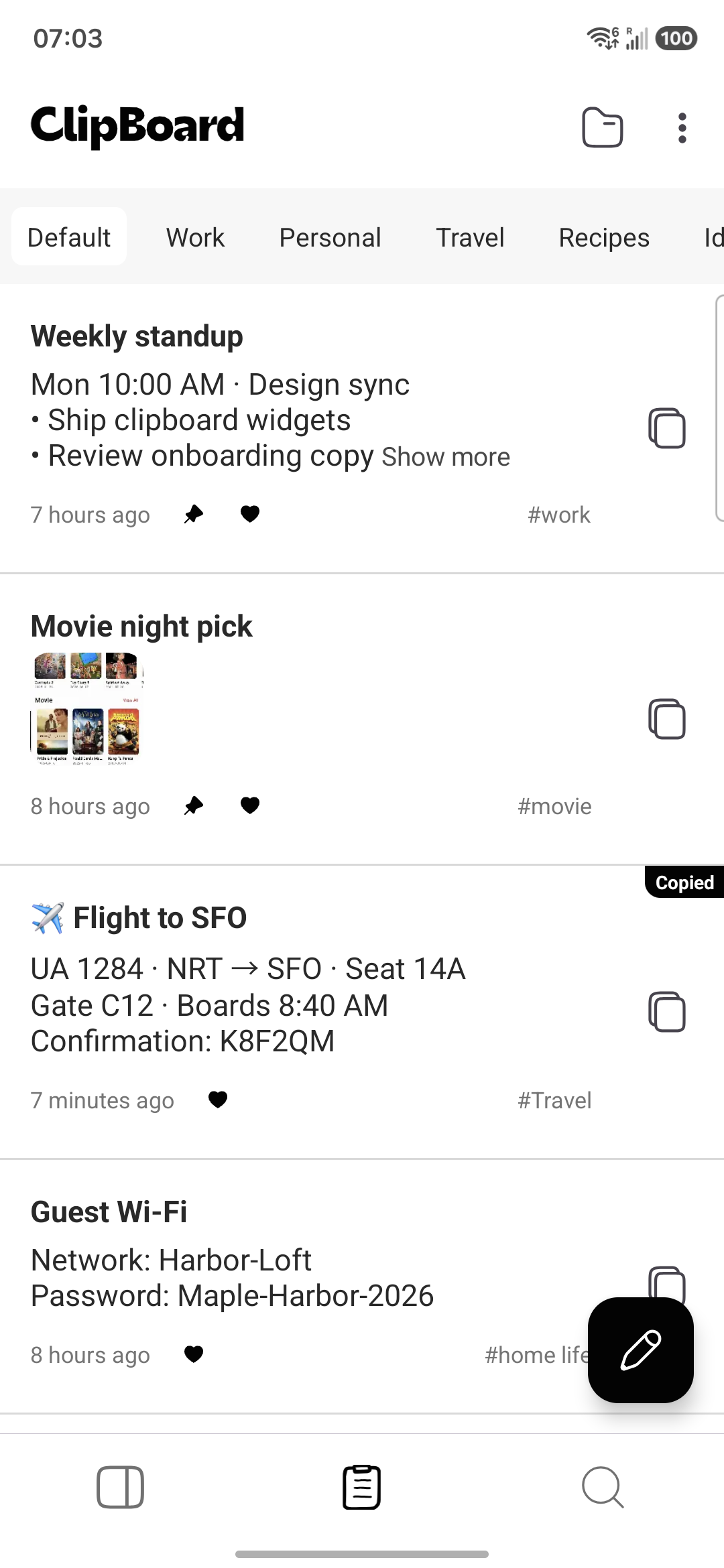
Consider a reusable shipping address. Save it once in Clipboard. When you need it, find the entry and copy it. You can then copy a different sentence for another task without depending on the system clipboard to preserve the address.
The same approach works for a reply template or a reference passage. Keep enough context to recognize the entry later. A short phrase with no source or explanation may be hard to identify months afterward, even if it is safely saved.
A preference label is not a promise of background capture
App settings can use words like “auto create” or “auto save.” Read them in the context of the app's workflow. In Clipboard, copying in another app does not automatically sync anything. A clip must be created or saved inside Clipboard first.
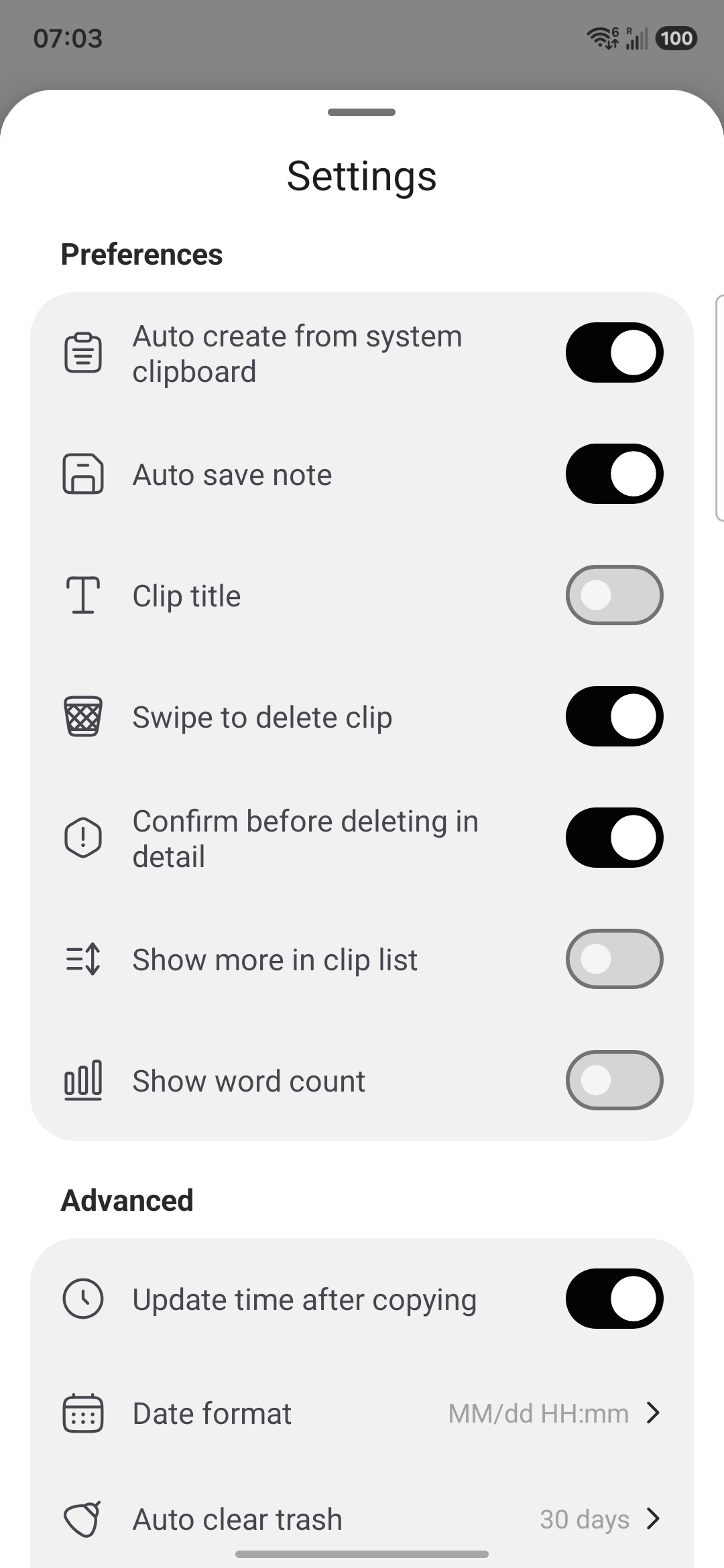
Test with a harmless phrase: copy it in a browser, open Clipboard, create or save a clip, and confirm the entry is in the list. This makes the saving step explicit. It also avoids discovering during a phone move that the “history” you expected was never recorded.
Where screen OCR fits
Text recognition solves a different problem. It turns visible words in an image or unselectable screen into editable text. It does not recover old clipboard contents and does not automatically make the recognition result accurate.
Clipboard's Android app includes a Recognize screen Quick Settings tile and a floating shortcut. In the recorded flow, Android asks “Share your screen with Clipboard?”. After approval, Clipboard presents the recognized text for review, with Copy and save and Save only actions.
Recognition uses on-device ML Kit and can work offline after the required models are available. It does not require Pro. Check the controls in your installed version rather than assuming every release has the same entry points.
Read the result before saving. OCR may include an address bar, rearrange lines, or misread numbers. Our guide to copying text on screen on Android shows the permission and preview screens, including those limits.
Copying, saving, syncing, and backing up are separate actions
Copying prepares content for pasting. Saving creates an entry you can reuse in Clipboard. Syncing makes saved clips available across supported devices with Pro. Backing up copies a collection to a chosen folder with Pro.
It is possible to copy without saving, save locally without cross-device sync, or sync a saved clip without making a folder backup. Check which outcome you need rather than looking for one setting that supposedly does everything.
Clipboard has Android and Mac apps, plus the Web app. It has no Windows app and no iPhone app. The free tier does not include cross-device sync. With Pro, sync is triggered by a clip being created or saved inside Clipboard, not by a background copy event in another app.
For a device-to-device task, follow how to copy and paste from Android to Mac and keep that saving step in mind. The cross-platform clipboard manager guide also helps you compare the platforms you actually use.
What happens when you change phones?
A local saved history belongs to the app's data on that device. An account alone does not recreate it elsewhere. Before resetting a phone, check that important clips have a recoverable copy rather than assuming the word “history” means cloud storage.
Clipboard Pro offers Settings → Backups → Export data / Import data. Export copies SQLite data and images to a user-chosen folder. Move the complete backup somewhere accessible from the new phone. Import overwrites the destination's current clips, so preserve any new entries first.
Automatic backup is also Pro. For a full migration checklist and the overwrite warning, use our clipboard history recovery guide for a new phone. If something was never saved, look for the original source; a backup cannot contain a clip that never existed.
Keep useful text without keeping everything
A saved collection can contain private messages, addresses, and other personal material. Save what you expect to reuse and remove things you no longer need. Use a password manager for credentials rather than treating clipboard history as a place to store every secret you copy.
Clipboard data is encrypted in transit and at rest. It is not end-to-end encrypted. Exported folders also deserve care because they contain the clip database and images. Choose who can access those folders, especially if you copy them to shared storage during a phone move.
Frequently asked questions
Is pasteboard the same as clipboard on Android?
In ordinary app instructions, the words usually describe the temporary place holding copied content for pasting. Android calls its system feature the clipboard. Pasteboard is common terminology in Apple software and some cross-platform apps; it does not imply a separate Android history archive.
Where do I open the Android pasteboard?
There is no universal Android screen named Pasteboard. Touch and hold a text field to look for Paste. A keyboard may provide its own clipboard history panel, and a history manager has a separate saved clip list. Controls vary by keyboard and phone.
Does Clipboard save everything I copy in other apps?
No. Do not assume background capture. A clip must be created or saved inside Clipboard to become part of its history and trigger Pro sync. Copying in another app alone does not automatically sync that content.
Does saved clipboard history follow me to a new phone?
Not simply because you sign in. Local-only clips need a recoverable copy. Clipboard Pro provides Settings → Backups → Export data / Import data, and import overwrites current clips. Free Clipboard does not include cross-device sync.
Can I copy text that is visible but not selectable?
You can try OCR. Clipboard’s Android app includes a Recognize screen Quick Settings tile and a floating shortcut. Approve Android’s screen sharing prompt, review the recognized text, and choose Copy and save or Save only. Screen OCR does not require Pro; check your installed version for these controls.
Does Clipboard have Windows or iPhone apps?
Clipboard has Android and Mac apps and a Web app at clipboardhistory.app/app/. It does not have a Windows app or an iPhone app. The Web app is the browser option; cross-device sync requires Pro.
Is Clipboard end-to-end encrypted?
No. Clipboard data is encrypted in transit and at rest, but that is not end-to-end encryption. Keep only the sensitive material you actually need, and protect any folders where you export your clip database and images.
Related articles
Keep a saved history you can check
Create or save useful entries in Clipboard. Check the list before relying on sync or making a backup.