
Why there is no shared clipboard
Apple's Universal Clipboard lets you copy on an iPhone and paste on a Mac or iPad, but Apple's Universal Clipboard help limits it to Apple devices signed in to the same Apple ID with Bluetooth, Wi-Fi, and Handoff on. Android phones are not part of it, and Android has no built-in way to share its clipboard with iOS. So every method below works by putting the text somewhere both phones can reach.
The quick comparison
| Method | Best for | Find it again later? |
|---|---|---|
| Message or email yourself | One item, right now | Only by scrolling your chat or inbox |
| Chrome Send to your devices | Web pages and links, if you use Chrome on both | No, it just opens the page |
| A shared notes app | Longer text you edit on both phones | Yes, as notes |
| Clipboard on Android + Web app in Safari | Snippets and links you reuse | Yes, searchable clip history (sync requires Pro) |
Method 1: Send it to yourself
The simplest option needs no setup. Copy the text, paste it into a chat or email app you are signed in to on both phones, and send it to yourself. Many chat apps have a chat with yourself or a saved messages space for exactly this. On the other phone, open the message, touch and hold the text, and tap Copy.
It is fine for a one-off. The downside is clutter: after a few weeks, finding that tracking number again means scrolling through everything else you sent yourself.
Method 2: Chrome's Send to your devices (links only)
If you use Chrome on both phones, signed in to the same Google account, you can send a web page from one to the other. In Chrome on iPhone, tap Share and look for Send to your devices; on Android, tap More > Share > Send to your devices. Pick your other phone and the page opens in Chrome there. Google's Share tabs in Chrome help has the details.
This moves a page, not arbitrary copied text. Menu names change between Chrome versions, so treat the steps as a guide.
Method 3: A notes app on both phones
A notes app that runs on iOS and Android and syncs through one account, such as Google Keep, works well for longer text you want to edit on either phone. Paste into a note on the iPhone, open the same note on Android, and copy it out. It keeps things around, but it is a notes tool: you end up opening, scrolling, and selecting text each time.
Method 4: Clipboard on Android + the Web app in Safari
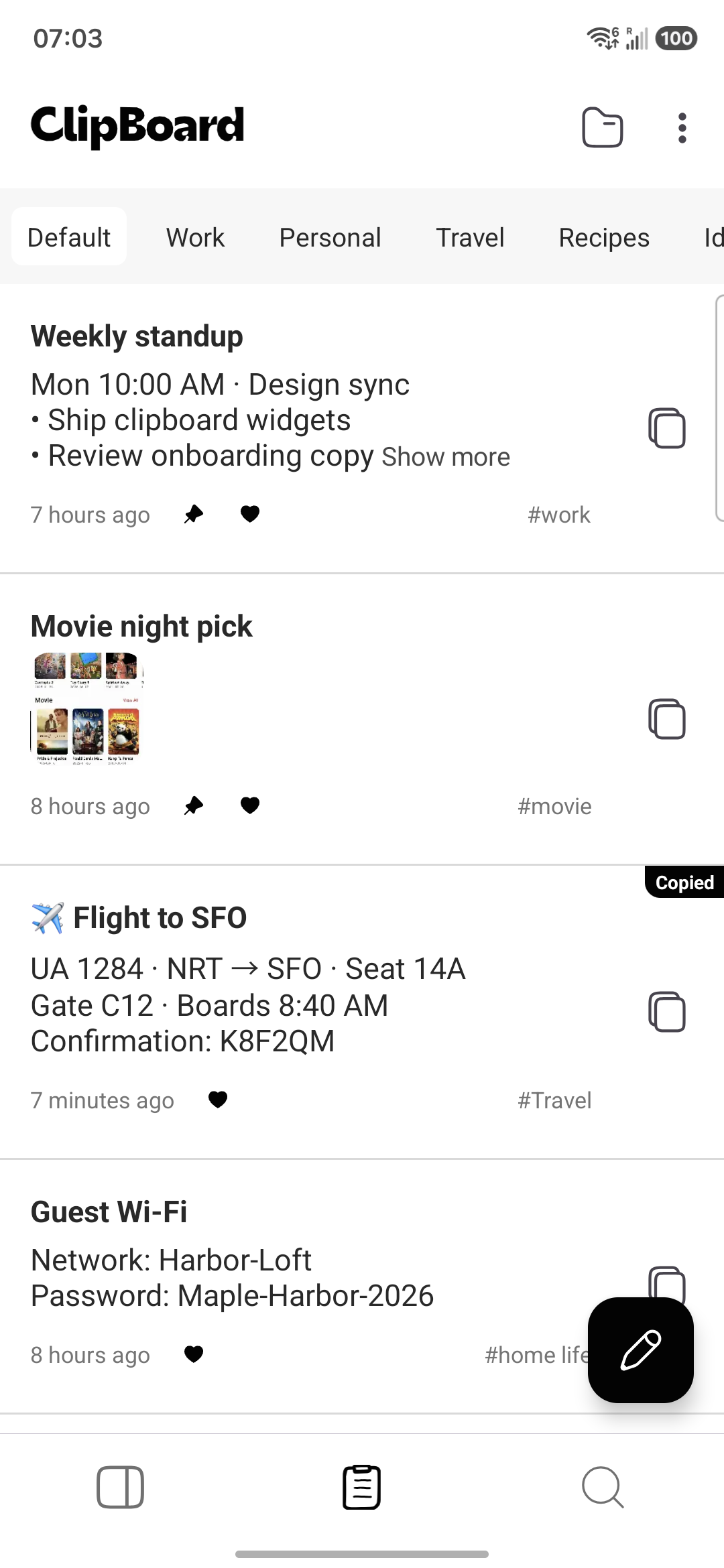
Clipboard is a clipboard manager with apps for Android, Mac, and Windows, plus a Web app. There is no iPhone app. On iPhone, you use the Clipboard Web app in Safari, which shows the same saved clips as your Android phone. Syncing between Android and the Web app requires Clipboard Pro.
Android to iPhone
- Download Clipboard on your Android phone and sign in.
- Copy the text or link, then save it as a clip in the Clipboard app.
- On your iPhone, open clipboardhistory.app/app in Safari and sign in with the same account.
- Find the clip at the top of your history or with search, copy it, and paste it where you need it.
iPhone to Android
- Copy the text on your iPhone.
- In the Web app in Safari, open the compose dialog, touch and hold the text field, and tap Paste, then save the clip.
- Open Clipboard on your Android phone, find the clip, and copy it.
How Clipboard actually works: copying text in another app does not automatically add it to Clipboard's history, and it does not sync by itself. Only items you create or save inside the Clipboard app (or the Web app) go into your history and Pro sync. The free Android app keeps a local history without ads.
To reach the Web app faster on iPhone, open it in Safari, tap Share, and choose Add to Home Screen. Images can move too; see syncing clipboard images between Android and Web.
Which method should you use?
- One item, once: send it to yourself.
- A web page, and you use Chrome on both: Send to your devices.
- Longer text you will edit: a shared note.
- Addresses, replies, links, or prompts you reuse: save them in Clipboard and open them from the Web app.
Also using a computer? See how to copy and paste from Android to Mac or between Android and Windows.
Tips
- iPhone keeps only the last copied item, so paste or save it before you copy something else. Android keyboards like Gboard keep a short history; see how to see paste history on Android.
- Don't move passwords or one-time codes this way. Use a password manager, and clear the clipboard after copying something sensitive.
Frequently asked questions
Can I copy on my iPhone and paste on my Android phone?
Not directly. Apple's Universal Clipboard only works between Apple devices signed in to the same Apple ID, and Android has no built-in clipboard sharing with iOS. You need something in between: a message to yourself, a shared note, a browser that syncs, or a clip saved in a service both phones can open.
Does Universal Clipboard work with Android?
No. Universal Clipboard is part of Apple's Continuity features and works between iPhone, iPad, and Mac that use the same Apple ID with Bluetooth, Wi-Fi, and Handoff turned on. Android phones are not supported.
Is there a Clipboard app for iPhone?
No. Clipboard has apps for Android, Mac, and Windows, plus a Web app at clipboardhistory.app/app. On iPhone you open the Web app in Safari. Syncing clips between Android and the Web app requires Clipboard Pro.
Does Clipboard automatically sync what I copy on Android to my iPhone?
No. Copying text in another Android app does not automatically add it to Clipboard's history or sync it. Only items you create or save inside the Clipboard app go into your history and Pro sync, and from there you can open them in the Web app on your iPhone.
What is the fastest way to send one link from iPhone to Android?
For a single link, sending it to yourself in a chat or email app you use on both phones is usually fastest. If both phones use Chrome signed in to the same Google account, Chrome's Send to your devices option can also push a page to the other phone.
Is it safe to move passwords between phones this way?
Avoid it. Messages, notes, and synced clips are not the right place for passwords or one-time codes. Use a password manager that runs on both iOS and Android, and clear the clipboard after copying anything sensitive.
Related articles
Copy on Android, paste on iPhone
Save the clips you need in Clipboard and open them in Safari on your iPhone.